 Dino Kids

It's the night before a trip. You grab the iPad to download a few more shows for the plane, and up pops "iPad Storage Almost Full". You check what's taking up room, and the top of the list isn't your photos or videos. It's your kid's learning apps, several hundred MB each. You could delete them, but then what happens to the pictures your child colored and the lessons they're halfway through?
This post answers three questions: which apps are using the space, what inside a learning app you can delete without losing anything, and how to clean up so the lessons are still there when you need them offline.
Why kids' learning apps keep getting bigger
Most apps are a few dozen to a few hundred MB when you install them. After that, they download more content as your child uses them: narration for each story, picture book pages, coloring pages, word card pictures and audio, voices that read the questions. Each piece is small, but after a few months it can add up to more than the app itself.
That extra content is what lets your child learn without an internet connection. The catch is that it stays on the device long after your child has moved on: the Japanese stories they listened to once last summer, the coloring theme they finished ages ago.
See which apps are using space
- iPhone and iPad: go to Settings → General → iPhone Storage (or iPad Storage). Tap an app: "App Size" is the app itself, and "Documents & Data" is everything it has downloaded and saved since.
- Android: go to Settings → Apps, pick the app, then tap Storage. The exact names vary a little by phone maker.
A big "Documents & Data" number is the part worth a closer look. But the total doesn't tell you what's inside, and some of it can't be replaced.
What you can delete, and what you can't
A kids' learning app usually holds three kinds of data:
- Content downloaded from a server: voices, pictures, stories. Safe to delete, because it can be downloaded again.
- Content built into the app: it comes with the install. You can't delete it separately, and there's no need to.
- Things your child made: colored pictures, voice recordings, stars and progress. This is the only part that doesn't exist on any server, unless it has been synced to an account.
The trouble is that "Delete App" on iOS and "Clear storage" on Android can't tell these apart. Deleting the app wipes your child's artwork along with the downloaded voices. "Offload App" on iOS keeps the data, but it doesn't free up the space that downloads are using either. The safe way is to clean up from inside the app, if the app lets you.
Cleaning up Dino Kids piece by piece: the "Offline data" screen
Dino Kids is our own app, so here's the specific version. It has a screen just for parents that shows how much space each part of the lessons takes, lets you download parts before going somewhere without internet, and lets you delete them to free up room. Open Settings (behind a grown-up math question), scroll down to the "App" section, and tap "Offline data".
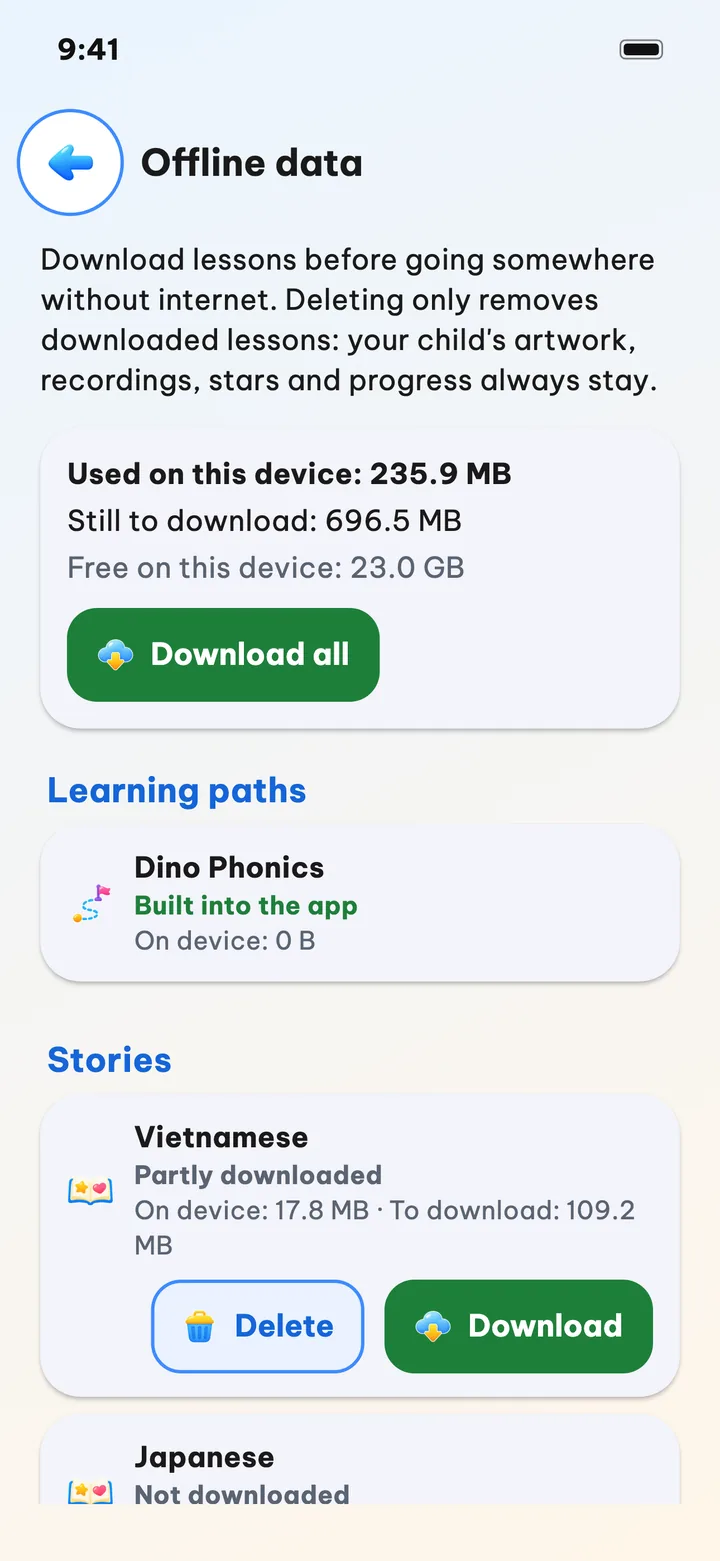
At the top are three numbers: "Used on this device", "Still to download" and "Free on this device". Below that, each part has its own card, in four groups:
- Learning paths: Dino Phonics, built into the app.
- Stories: one card per language, holding the narration and picture book pages for that language.
- Learn and practice: "Coloring", "Word cards", and "Pre-school and Math".
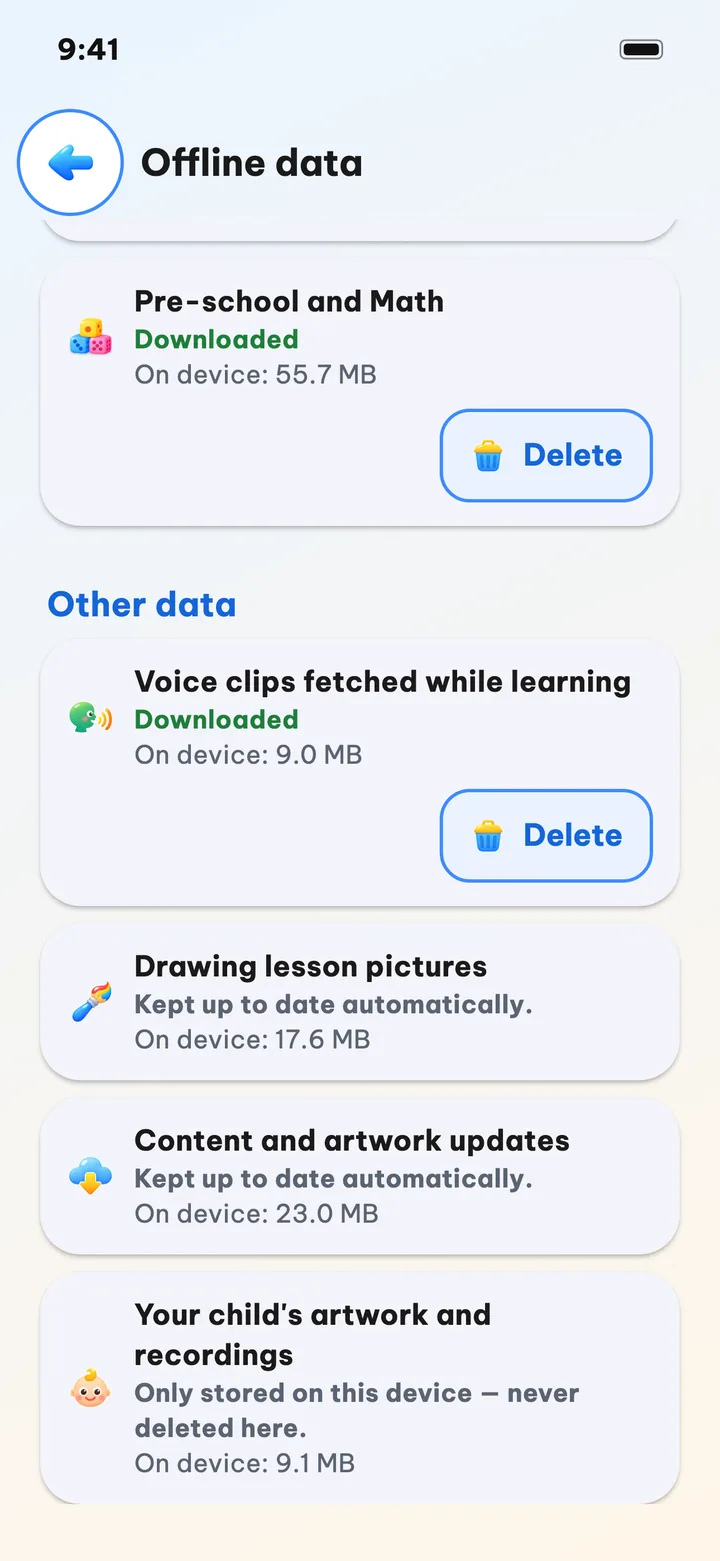
- Other data: voice clips the app fetched while your child was learning, the Learn to draw model pictures, content and artwork updates, and your child's artwork and recordings.
Each card shows a status ("Downloaded", "Partly downloaded", "Not downloaded", "New version available", "Built into the app"), how much is "On device", and how much is left "To download".
Deleting a part
Tap "Delete" on a card, and the app asks once, spelling out what goes and what stays.
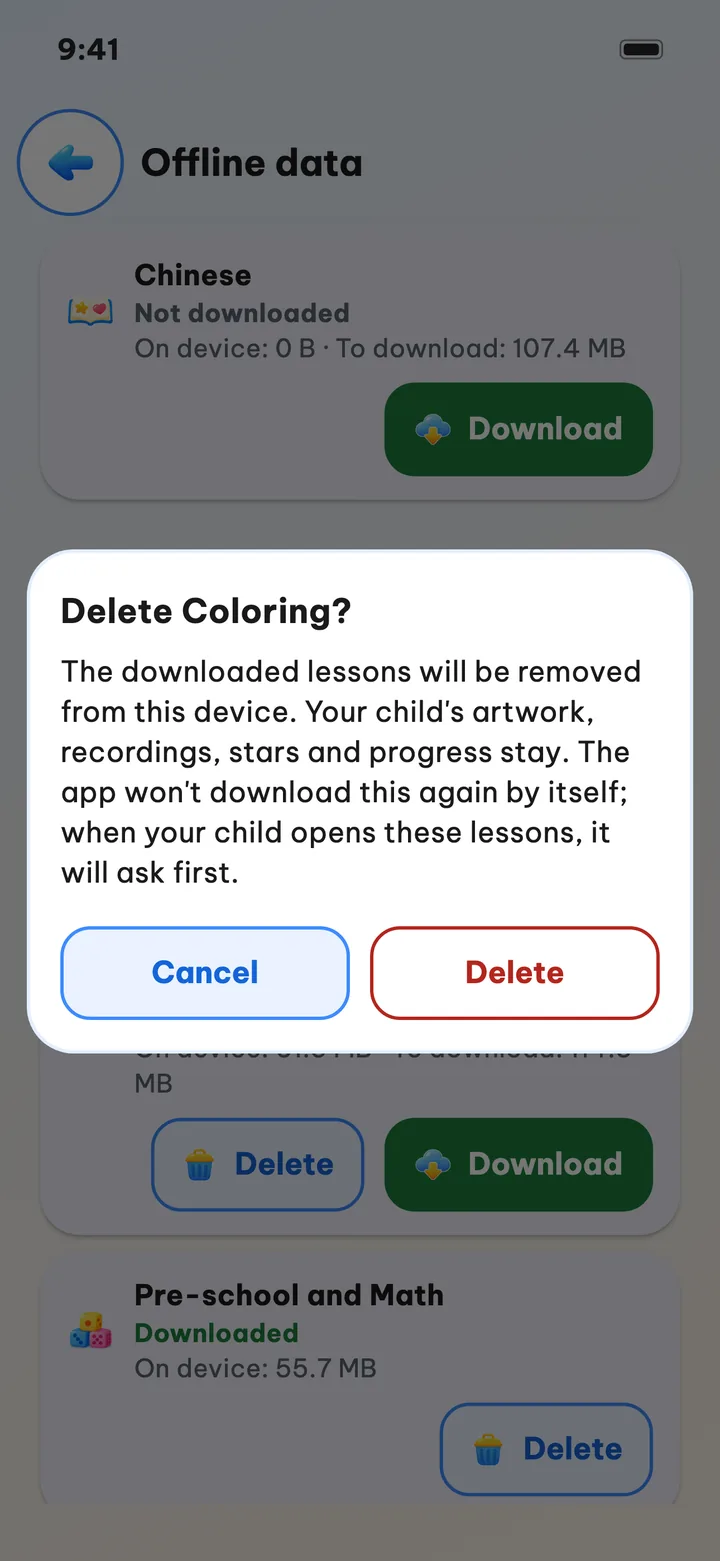
Once deleted, the card says "Deleted — won't download again by itself". This is where it differs from a lot of apps: the next morning's sync does not quietly download the very thing you just cleaned out. It only comes back when you tap "Download", or when your child opens a lesson and chooses to download it.
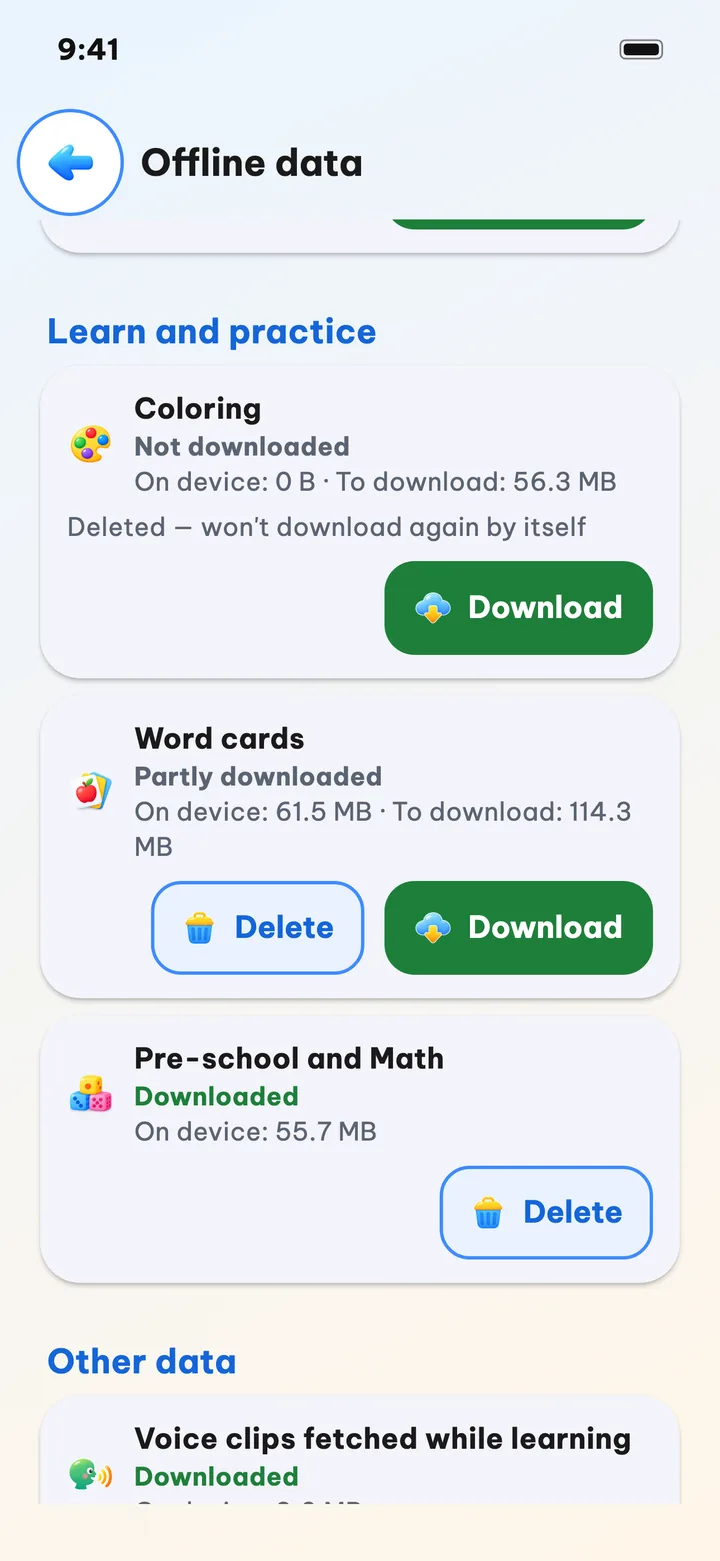
Each part keeps a few things so your child never lands on an empty screen:
- Coloring: the 30 pictures built into the app, plus every picture your child has colored or started, stay.
- Stories: the story text and cover pictures stay; only the narration and page pictures are removed.
- Word cards: topic pictures and cover cards stay, so the topic grid isn't blank.
- Pre-school and Math: only the question voices are removed. Lessons, stars and progress are untouched.
What this screen never deletes
The cards at the bottom are view only. "Your child's artwork and recordings" says "Only stored on this device — never deleted here.": colored pictures, pictures you added, profile photos, your child's recordings and the voice you recorded in "A parent's voice". "Drawing lesson pictures" and "Content and artwork updates" say "Kept up to date automatically.": they're small and the app looks after them. Delete them and the next sync would just download them again, or the app would fall back to an older version, so there's no Delete button.
When your child opens something you deleted
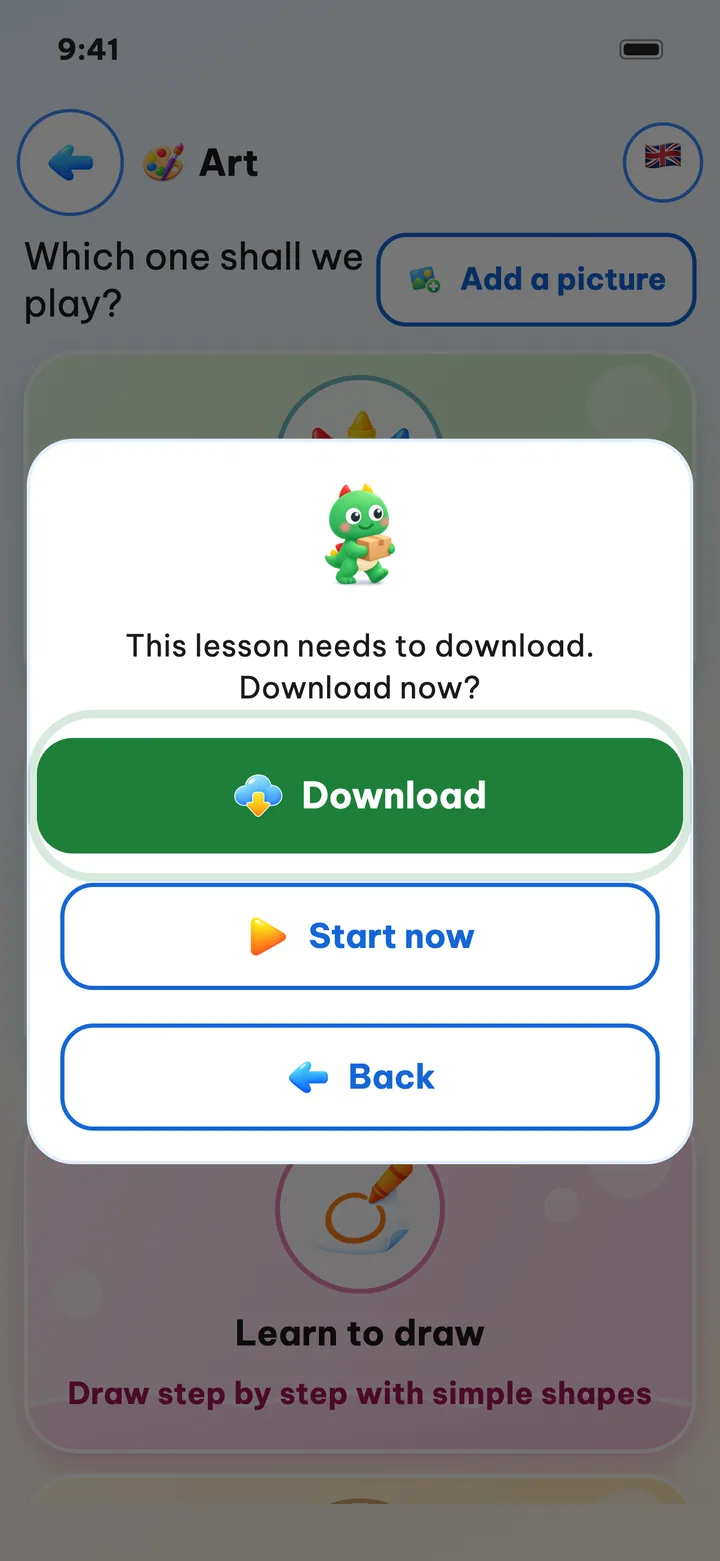
Say you cleared out "Coloring", and the next day your child taps the coloring tile. The app shows a big box and reads it aloud: "This lesson needs to download. Download now?" If you're online, your child taps "Download" and that's it. For Coloring and pre-school lessons, the box also has "Start now", so your child can use what's built into the app right away.
Turn off what no child uses, and the app stops downloading it
Often the space problem starts with a subject your child has simply outgrown, or never picked up. In Dino Kids each child has their own list of what they see: open Settings (behind the grown-up question), go to Family account → Your children, tap your child's card to open their settings, and switch items off under "Learning & play".
When an item is switched off for every child on the device, the app stops downloading more for it by itself: new coloring pictures for "Coloring", question voices for "Pre-school and Math", and word card audio in a language no child is learning (that one follows "Languages to learn" in each child's profile). Switch it back on for any child and downloading picks up again. On the "Offline data" screen, those cards say "No child on this device uses this — not downloading more", so you can see at a glance what has stopped.
What was already downloaded still takes up room, so right under "Learning & play" a card called "Data no child uses" lists those items with how much space each one is using, and a "Delete" button for each. It asks once, the same way the "Offline data" screen does. As everywhere else in the app, your child's artwork, recordings, stars and progress are never deleted.
A sensible way to clean up
- Delete what your child no longer uses: stories in a language they've stopped listening to, or "Voice clips fetched while learning" from past weeks.
- Keep what they use every day. Downloading it again costs more data and time than just leaving it there.
- Before a trip, do the opposite: download everything your child will use, then test it in airplane mode. Step-by-step instructions are in "Use Dino Kids offline".
- The app always keeps about 300 MB free so the device keeps running: when storage is nearly full, it won't download and shows "Not enough free space on this device." instead of risking a stall halfway through.
- To keep your child's artwork safe when you switch devices, create a Dino Kids account so their pictures and progress move with them. Using the app offline and downloading lessons don't need an account.
On a family iPad that everyone shares, storage always runs short. What you need isn't the smallest app. It's one that tells you exactly what's on the device and lets you clean up just the right part.