 Dino Kids

A flight, a long car ride, a weekend at a cabin, or just the Wi-Fi switched off at night: Dino Kids keeps working, because most lessons are built right into the app. The rest, like story narration, the full coloring library and the word card pictures, lives on our server and comes to the device when it's needed. The "Offline data" screen lets you download all of it ahead of time, while you're still on Wi-Fi at home.
You don't need an account. Downloading and using the app offline both work without signing in.
What's built in and what needs downloading
Built into the app from the moment it's installed, even if it has never been online:
- "Write letters" and the alphabet boards in five languages, with each letter read aloud.
- Vietnamese "Spelling", with every syllable read aloud.
- Dino Phonics: English sound-blending lessons and eight short stories, all with audio.
- "Free drawing", "Learn to draw" (the guide lines your child traces) and "Connect the dots".
- "Music": piano lessons, songs and "Free play".
- "Maze", "Join the numbers" and "Flip cards".
- 30 "Coloring" pictures, two for each theme.
- The text of every story in "Stories".
Needs downloading while you're online:
- Narration and picture book pages for "Stories", one language at a time.
- The full coloring library.
- Pictures and audio for "Word cards".
- The voice that reads the questions in the pre-school and math lessons.
Lessons for "More math" and "Times Tables", plus the color model pictures in Learn to draw, arrive the first time the app syncs. Just open the app once while you're online.
Open the "Offline data" screen
- On the home screen, tap
 in the top right and answer the grown-up question to open "Settings".
- Scroll down to the "App" section and tap "Offline data".
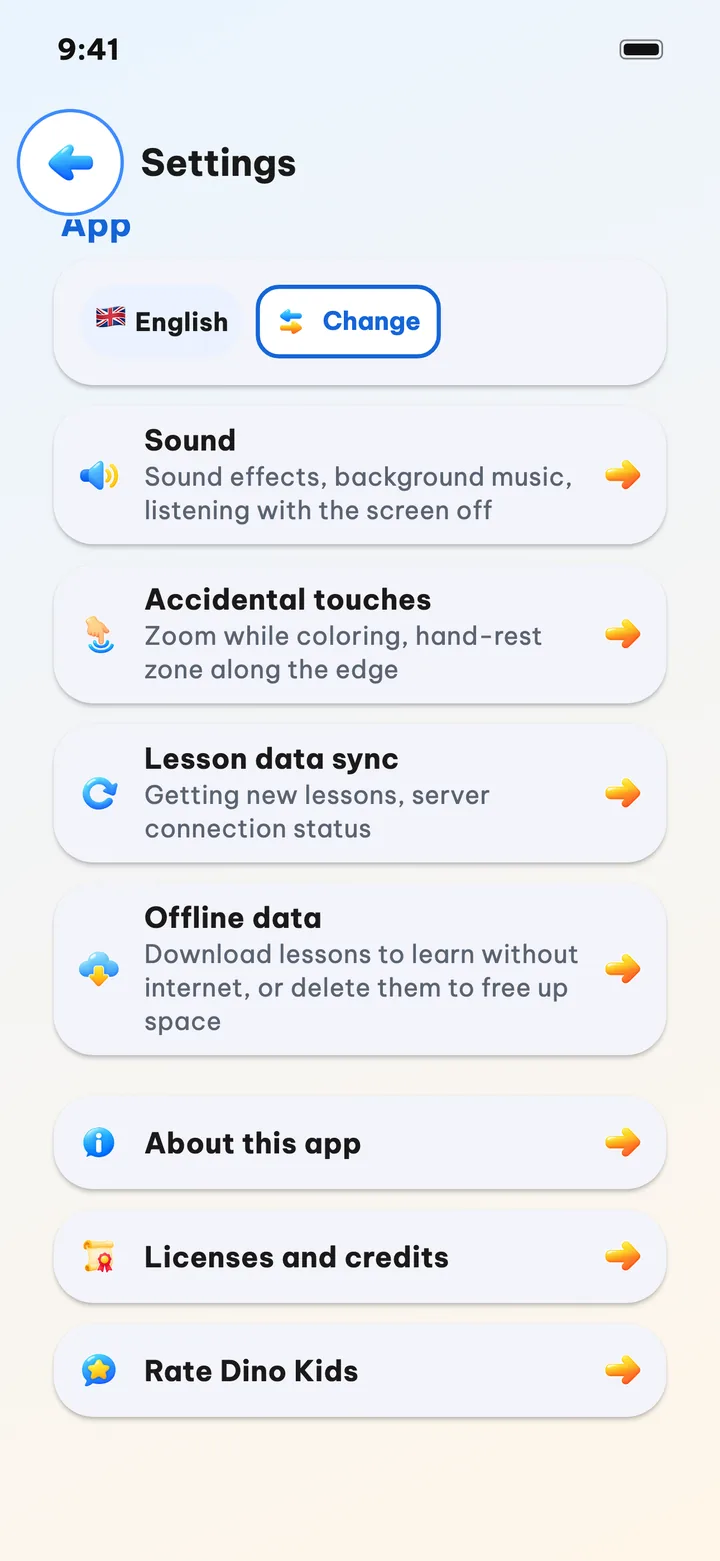
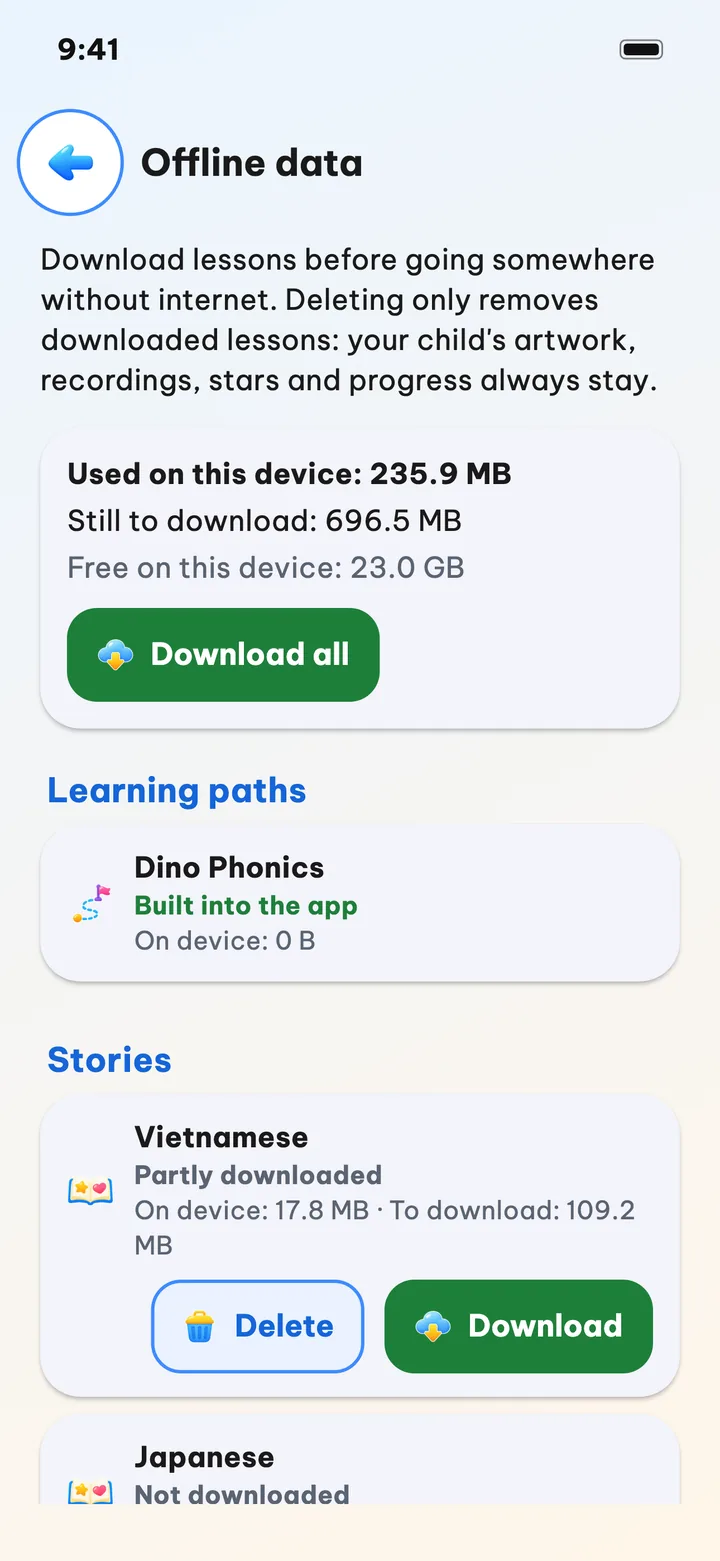
At the top are three numbers: "Used on this device" is what's already downloaded, "Still to download" is what's missing, and "Free on this device" is the free space on the whole device. Below that, each part of the lessons has its own card, in four groups: "Learning paths", "Stories", "Learn and practice" and "Other data".
Download before your trip
Do this on Wi-Fi, a day or two before you leave.
- Switch the app language to the one your child will use, if needed. The question voices for the pre-school and math lessons download in the app's current language.
- Tap "Download all" to fetch everything that's missing. To save space, tap "Download" on just the cards you need: "Stories" in the language your child listens to, "Coloring", "Word cards" and "Pre-school and Math".
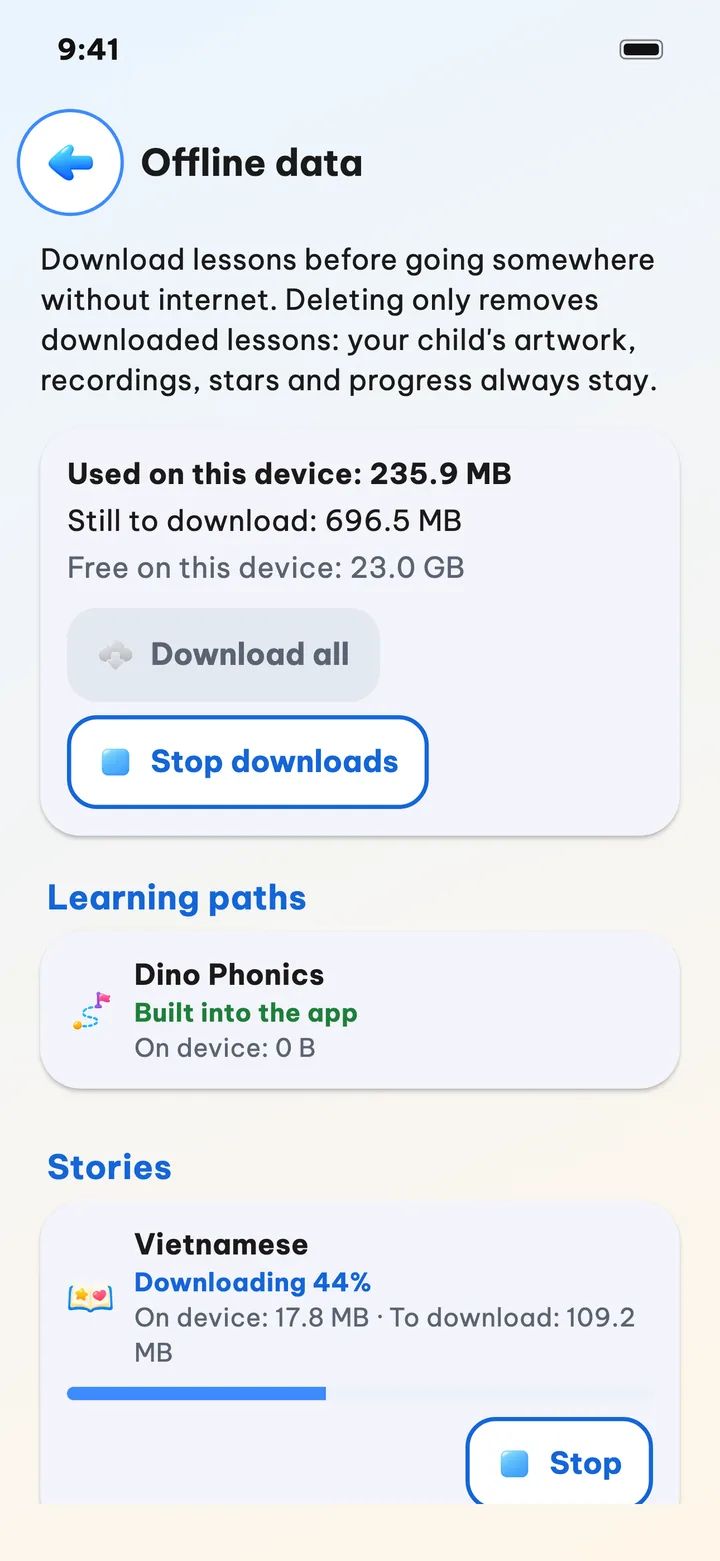
- Keep the app open on screen until it's done. Parts download one at a time; the active card shows "Downloading 44%" and the ones in line show "Waiting to download". "Stop" on a card, or "Stop downloads" at the top, cancels the download.
- You're done when every card you need says "Downloaded".
If the Wi-Fi drops partway through, the card says "Paused: no internet. It will continue when you're back online." If the app gets closed, it picks up the missing parts the next time it opens instead of starting over.
If the device is short on space, the app won't start the download and shows "Not enough free space on this device." It always leaves about 300 MB free so the device keeps running smoothly. Delete some photos, videos or other apps, or download only what your child needs. For how to clean up Dino Kids itself, see "iPad storage full?".
Test it in airplane mode
Before the day you leave, turn on airplane mode, switch off Wi-Fi too, and open a few things your child uses most: a story, a word card topic, a coloring page. If you hear sound and see pictures, you're set. If something is missing, turn airplane mode off and download that card again.
When your child opens a lesson that isn't on the device
If you deleted a part on the "Offline data" screen and your child then opens a lesson from it, the app shows a big box and reads it aloud: "This lesson needs to download. Download now?" Your child taps "Download", waits for the bar to fill, and goes straight into the lesson.
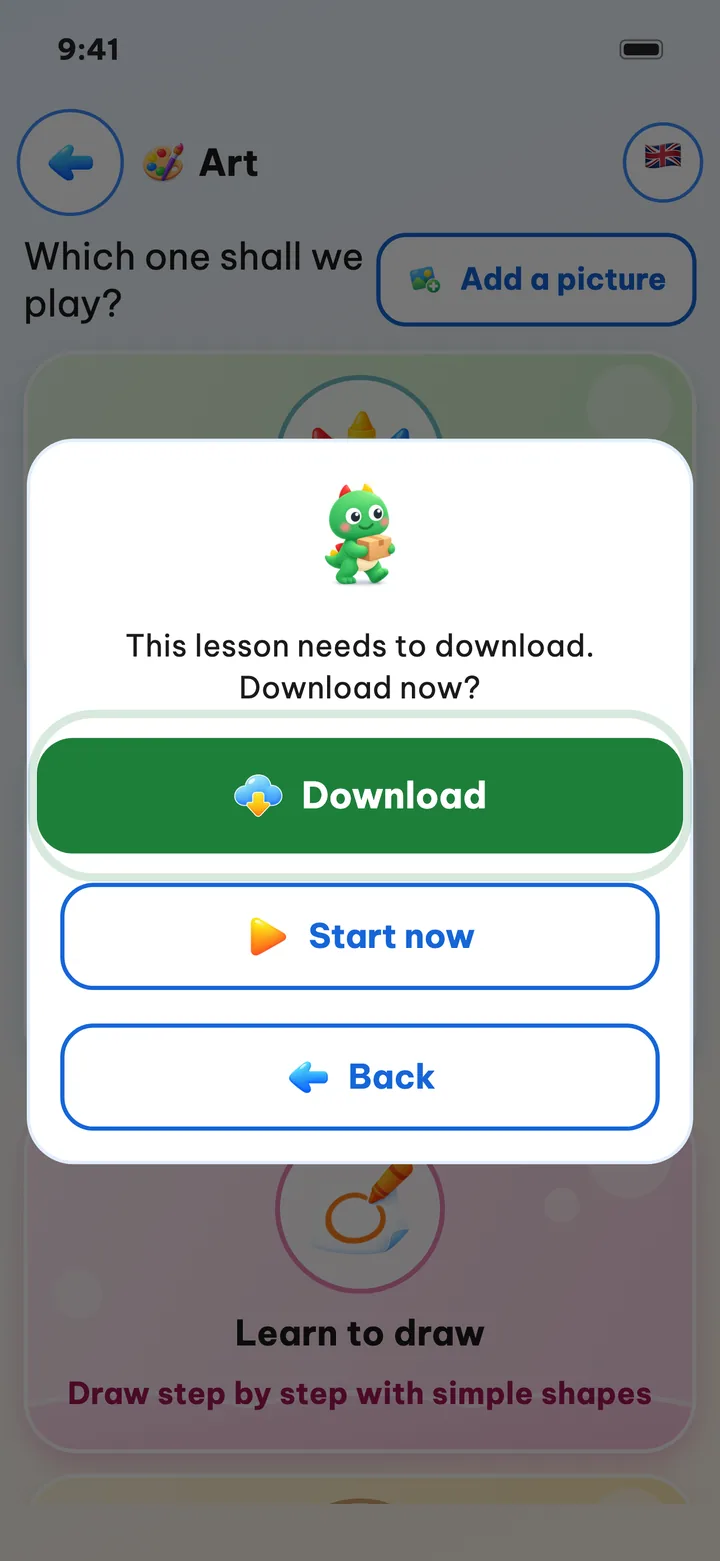
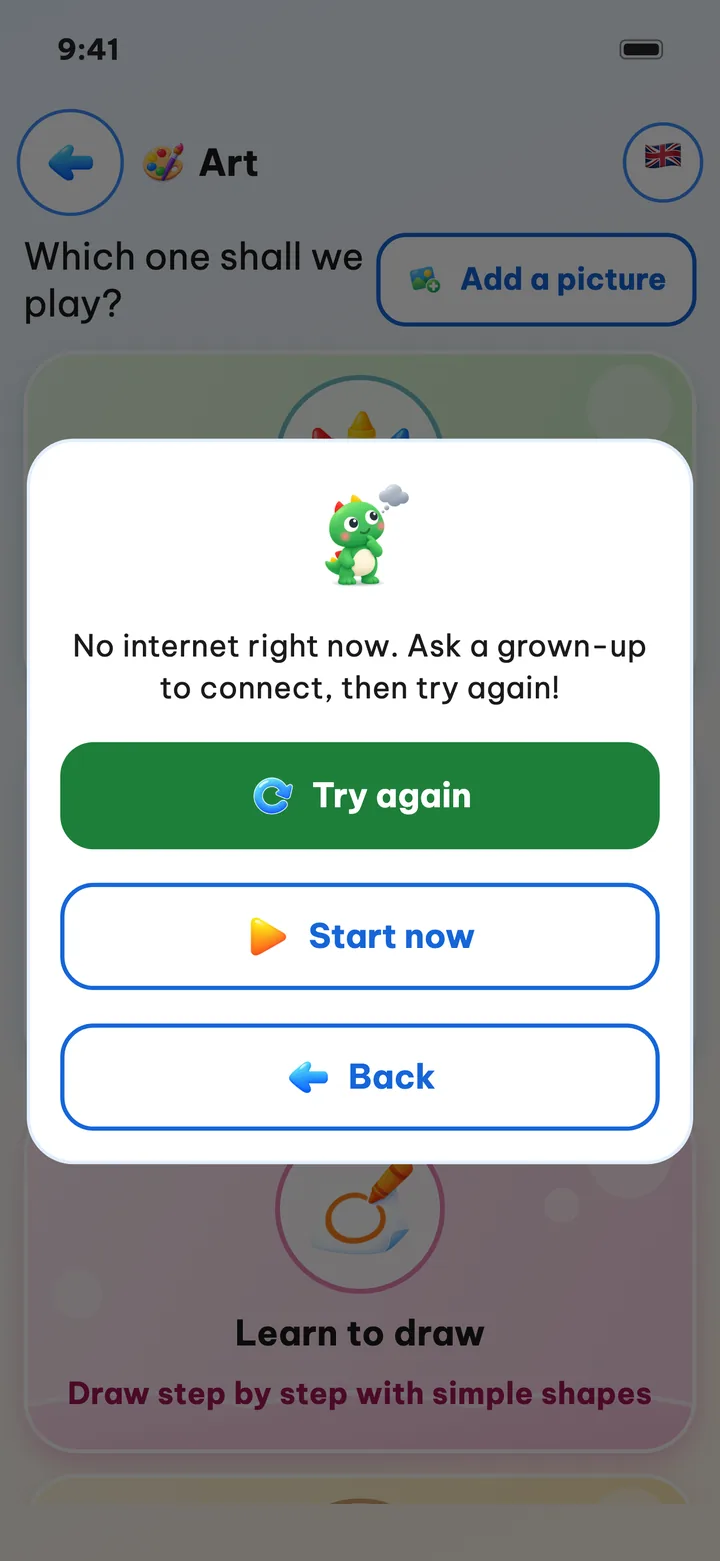
For "Coloring" and "Pre-school and Math", the box also has "Start now": your child can color the 30 built-in pictures, or do lessons with what's already in the app, without waiting. Stories and word cards need the exact part that was deleted, so they only have "Download" and "Back".
With no internet, the box changes to "No internet right now. Ask a grown-up to connect, then try again!" with a "Try again" button. There's no red and no ✗: your child hasn't done anything wrong.
Good to know
- Downloaded parts stay on the device until you delete them. When the server has something new, the card says "New version available" with an "Update" button; your child keeps learning with the version already on the device.
- Stories your child opened while online keep their narration and pictures on the device, even if you never tapped download on this screen.
- Downloading doesn't need an account. An account is only for bringing progress, your child's artwork and settings to another device.
- The "Screen time" limits you set in Settings keep counting when there's no internet.
If a step isn't clear, or the app behaves differently from this guide, write to us at dinokids@digidinos.com.