 Dino Kids
Perhaps your child has just drawn a cat in crayon, with eyes bigger than its head, and wants to colour in that very cat. In Dino Kids, you take a photo of the drawing, the app turns it into black lines on a white background, and your child's picture becomes a colouring page sitting alongside the ready-made ones. A printed colouring page your child loves can go in the same way.
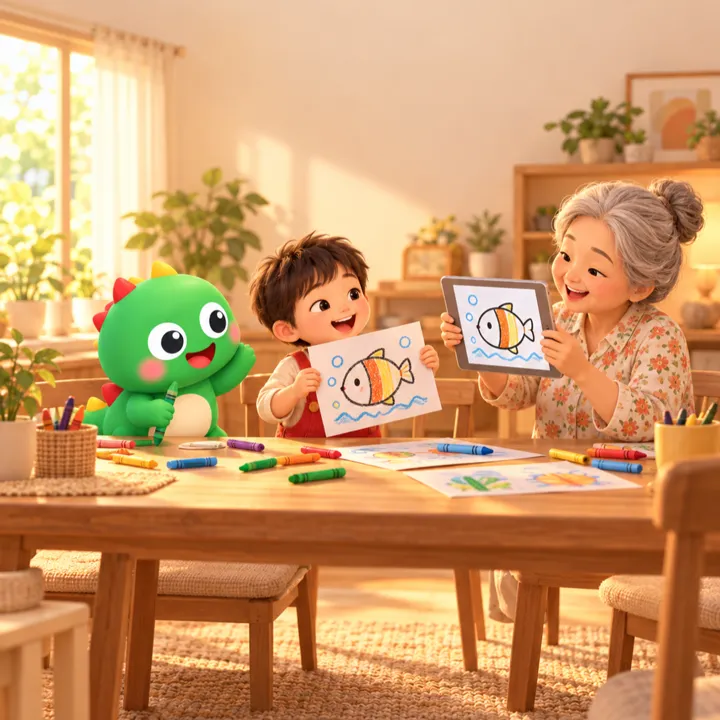
Step by step
1. Open the Add a picture screen
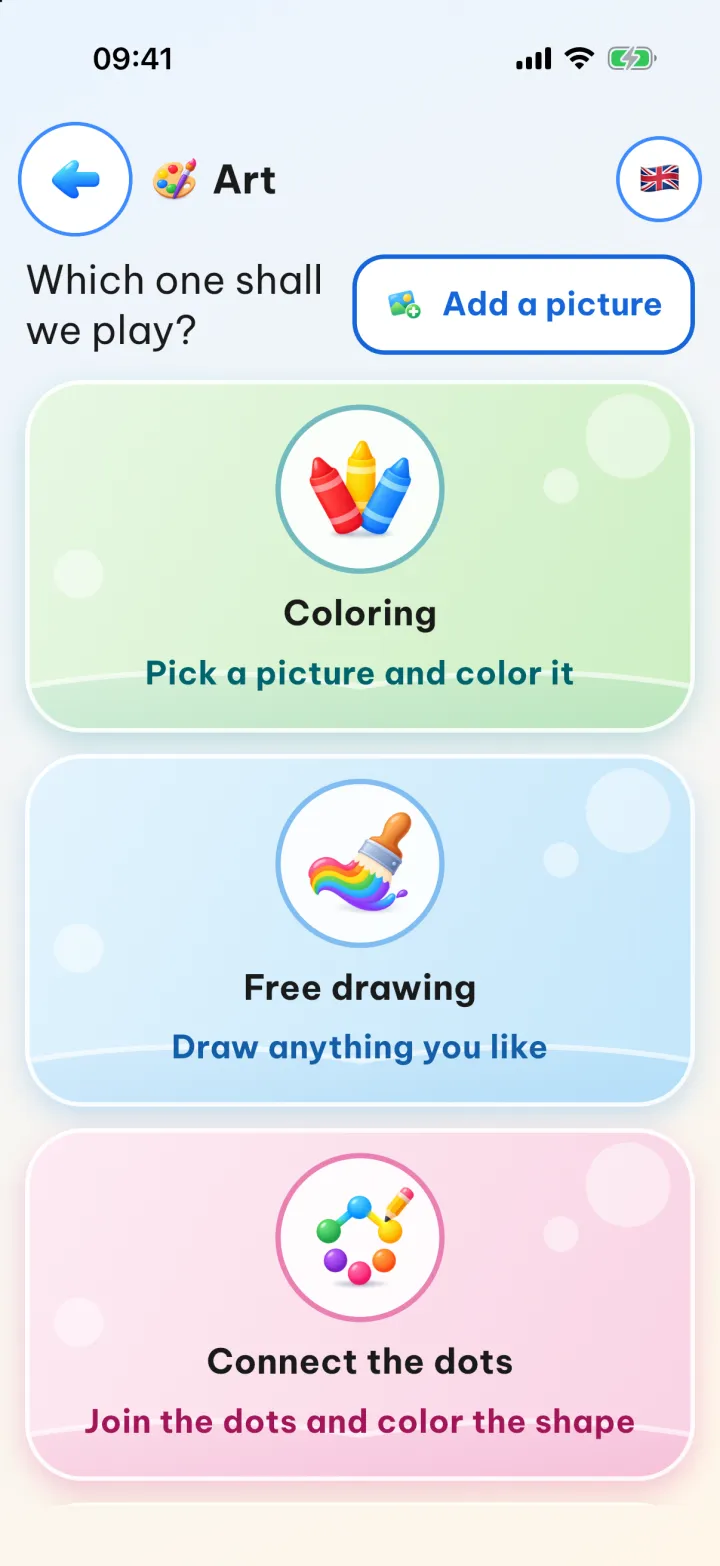
On the home screen, tap the Art subject, then tap Add a picture. The app asks a question meant for grown-ups before it opens.
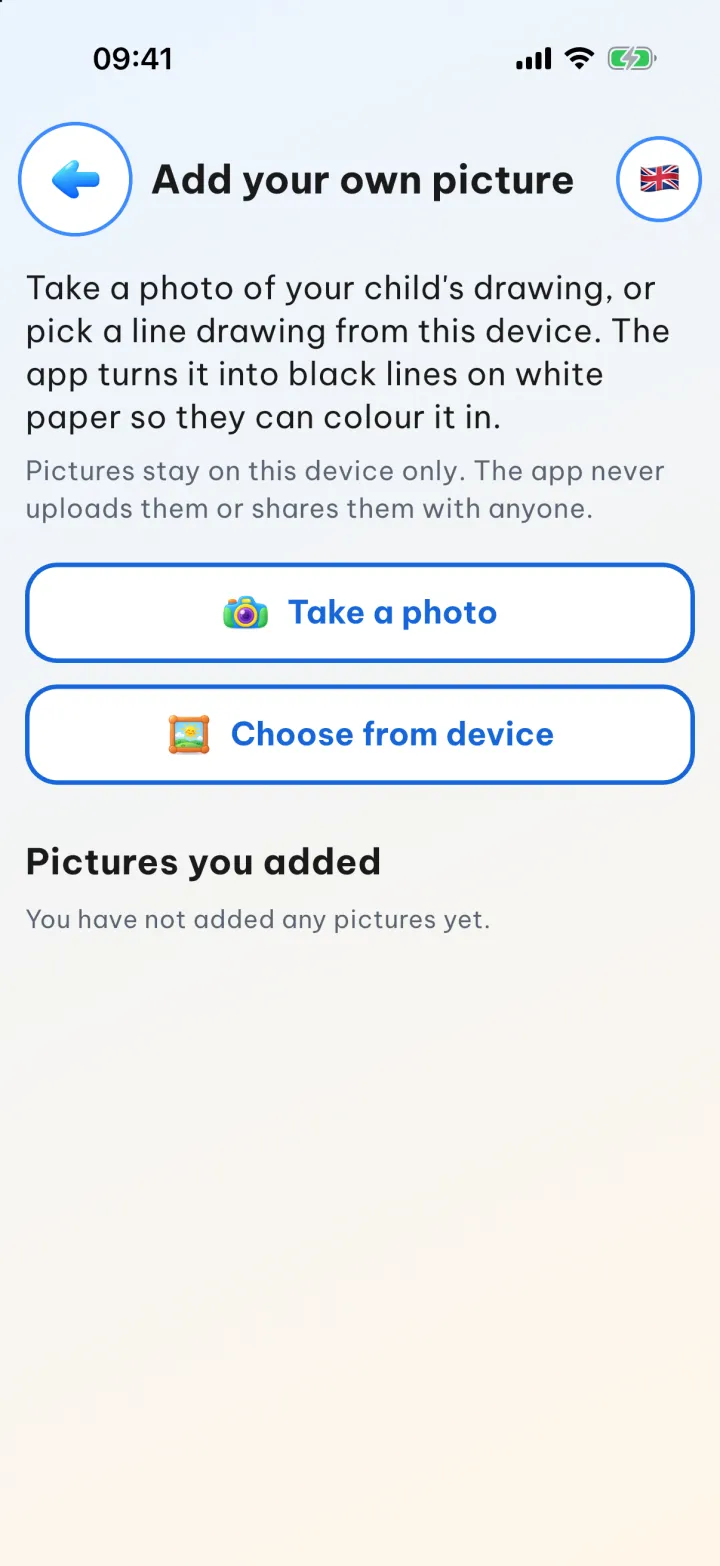
2. Take or choose a photo
The Add your own picture screen has two buttons: Take a photo to photograph the sheet of paper right away, or Choose from device to use a picture already on the device.
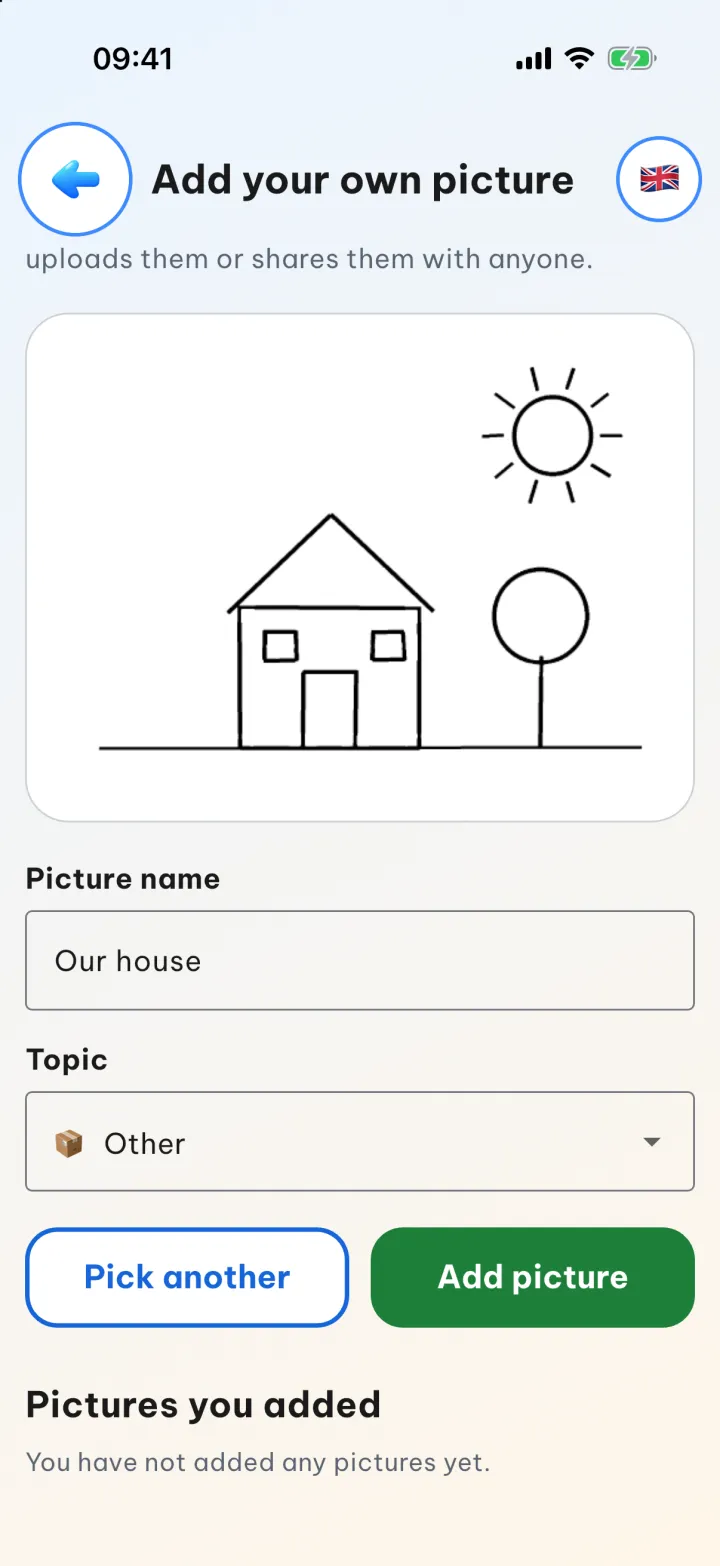
3. Preview, name it and pick a topic
The app takes a moment to turn the photo into line art, then shows you a preview. Type a Picture name (the default is Our picture) and choose a Topic so your child can find it again; the default is Other. If you don't like the line drawing, tap Pick another.
When you are happy with it, tap Add picture. The photo never leaves the device: the app doesn't upload it to a server or share it with anyone.
4. Your child can colour straight away
Once it is saved, the app opens the colouring screen for the new picture. Your child colours it just like any other picture in the app. Leaving without saving brings up a question asking whether to save.
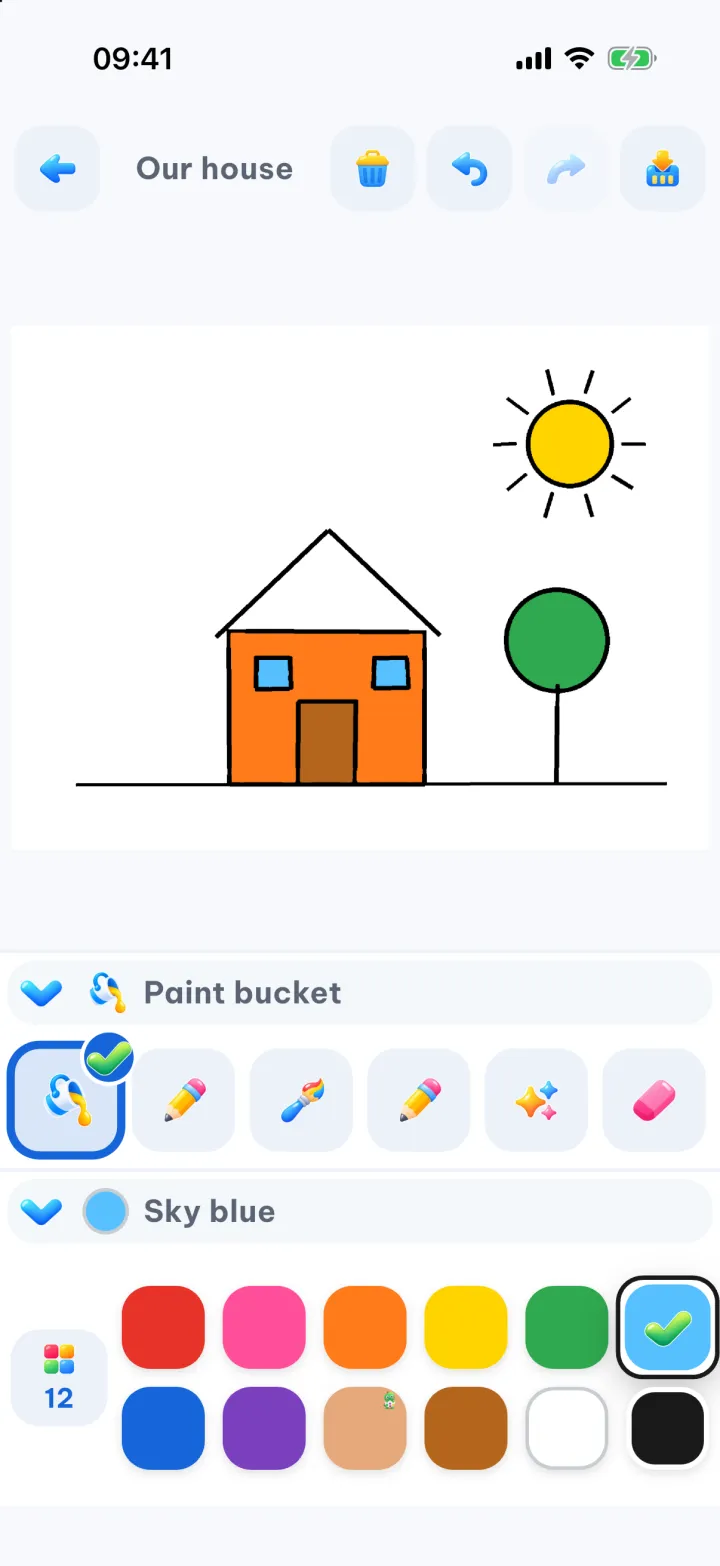
Next time, your child can find the picture in Art by choosing Coloring and then the topic you picked. The Other tile is at the end of the topic grid.
Tips for clean line art
- Clear lines on a light background give the best results: a drawing done in a bold pen, or a colouring page printed on white paper.
- Take the photo somewhere well lit, lay the paper flat, and keep the shadow of your hand or phone off the page.
- If the result comes out too dark, the app tells you, because it would be hard to colour in. Try again in brighter light, or pick a picture with clearer lines.
- Only add pictures your family is allowed to use: your child's drawings, your own drawings, or colouring pages whose licence allows it.
Deleting a picture you added
At the bottom of the Add your own picture screen there is a list called Pictures you added. Deleting a picture there removes it from the library, but anything your child has already coloured from it stays in their gallery.
Good to know
- Lines need to join up: where an outline has a gap, the paint bucket can't fill it (like the roof in the picture above).
- Pictures you add stay only on the device you added them on, and don't sync to other devices, even with an account.
- On iPhone and iPad, the app only asks for permission to use the camera. Choosing a photo goes through the system's own photo picker, so the app doesn't need access to your whole photo library.