 Dino Kids
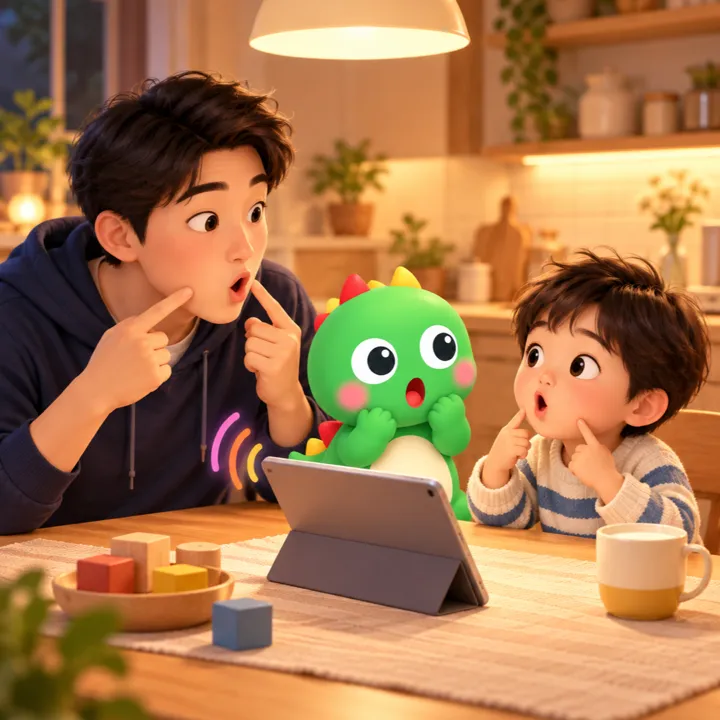
The voices built into the app are clear and accurate, but the voice your child knows best is yours. Some families want their child to hear the accent of the place they come from; others simply want their child to hear a parent say the letter sounds the way they do every evening. Dino Kids lets you record your own voice in place of the app's voice, one item at a time. Anything you haven't recorded is still read in the app's voice, so you can take as long as you like: a few minutes each evening, perhaps with your child sitting right next to you.
Step by step
1. Open the recording screen
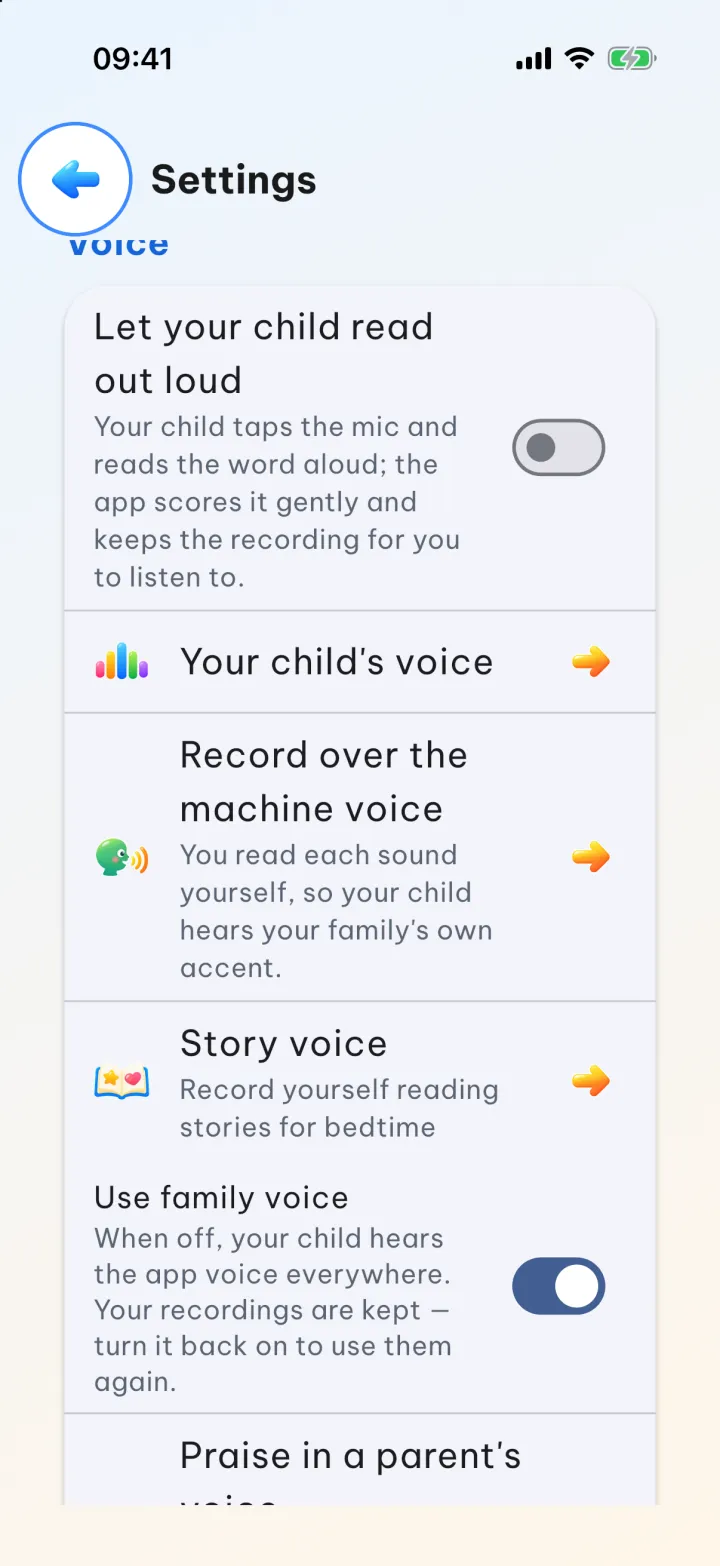
On the home screen tap  , then solve the sum meant for grown-ups to open Settings. In the Voice section, choose Record over the machine voice. This opens the A parent's voice screen.
2. Choose a subject and a group
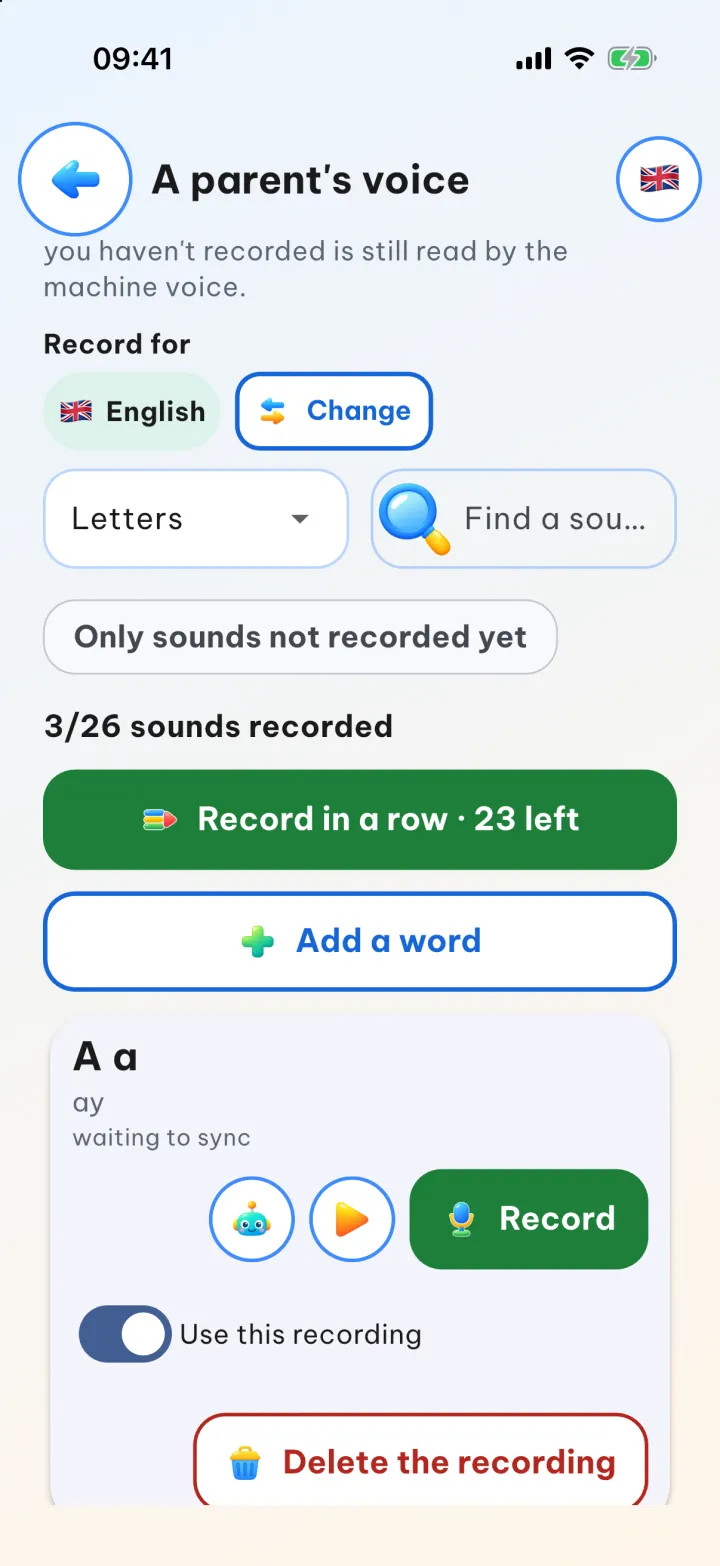
Under Record for you see the subject that is open, with its flag. The first time, it matches the app's language; after that it reopens the subject you last recorded. Tap Change to pick one of five: Vietnamese, English, Japanese, Korean or Chinese. Each subject is split into groups in the order children learn them. English starts with Letters, Picture words, Numbers 0–20 and Praise; Vietnamese starts with Sounds, Endings, Tones, Syllables and Spelling words; Korean and Chinese start with Hangul or Chinese characters, then Picture words, Numbers 0–20 and Praise. In those two subjects, letters, words and numbers come with Romaja or pinyin, so you know how to read them. The line that reads … sounds recorded shows how far you have got.
A few tools help you move faster: Find a sound to go straight to the item you want, and Only sounds not recorded yet to hide the ones you have finished. Each row has a  button to play your recording, a
 button to play the machine voice so you can compare, and Delete the recording if you want to start again.
3. Record a whole group in a row
To record a single row, tap Record, speak, then tap Stop. To work through a group in one go, tap Record in a row · … left. The app shows one item at a time: tap Record and speak. When you stop talking, the app stops by itself, plays the recording back to you, then keeps it and moves on; to keep it straight away, tap the green Keep button. Not happy with it? Tap Redo before the app keeps it, or Skip to leave it for later. Turn on Start the next one by itself and the app also opens the microphone for the next item, so all you have to do is speak. Where an item has a sample voice, tap Sample to hear it first.
4. Add your family's own words and praise
To record a word that isn't on the list, tap Add a word, type it, then say it out loud. You can record the Praise group too, so your child hears their own parent cheering them on; in that group, the Add praise button lets you record the phrases your family likes to say, such as "Well done!".
A shortcut from your child's lessons
On the Vietnamese syllable-blending screen and in the Getting ready for school lessons, an Add a recording button appears when the item your child is on has no sound yet. Tap it, pass the parental gate, and you can record that item on the spot without hunting for it in Settings.
Good to know
- Each recording can be up to 10 seconds long. If the app hears nothing, it doesn't save; if you speak too quietly, it asks you to speak up or move closer to the device.
- The first time you record, the device asks for permission to use the microphone. If you said no, you can turn it back on: on iPhone and iPad go to Settings → Dino Kids → Microphone; on Android, go to Settings → Apps → Dino Kids → Permissions.
- You can record for all five subjects: Vietnamese, English, Japanese, Korean and Chinese.
- The Use family voice switch at the top of the screen turns all your recordings on or off at once, and it is set per device. When it is off, your child hears the machine voice in every lesson; your recordings are kept, and turning it back on brings them back.
- Recordings belong to the whole family, not to one child, so removing a child's profile doesn't delete them.
- Without an account, recordings live on this device only and are lost if you delete the app. With an account, they sync to your other devices (see accounts and syncing).
Once you have recorded your voice for lessons, why not try reading a whole folk tale to your child: record yourself reading stories.