 Dino Kids
You can use everything in Dino Kids without an account: lessons and voices still download to the device in full. An account adds just one thing, and that is syncing. It suits families whose child learns on the iPad at home and then borrows a parent's phone when travelling, or who are moving to a new device and want their child to carry on exactly where they left off.
Creating an account
1. Open the Family account screen
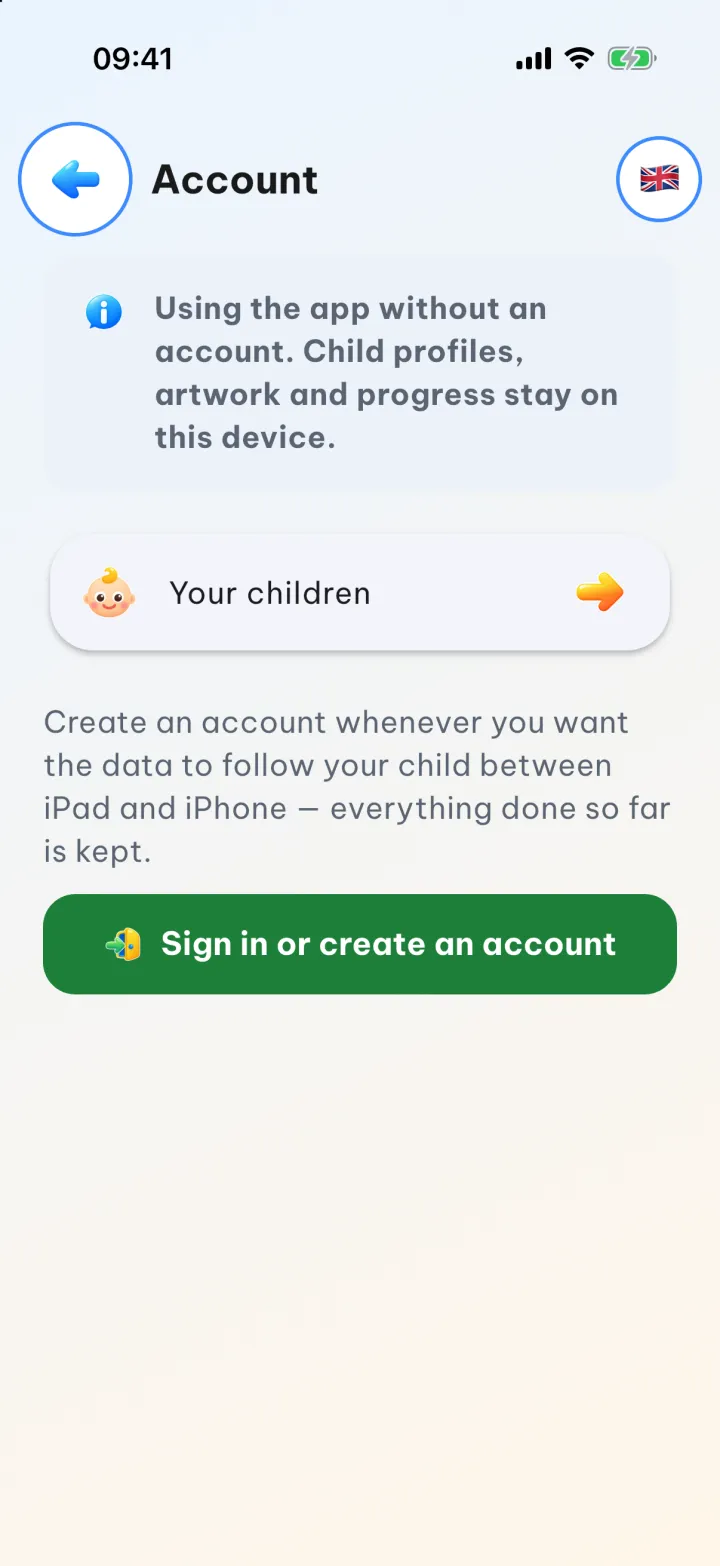
If you are using the app without an account: on the home screen tap  , solve the sum meant for grown-ups to open Settings, scroll to the bottom and choose Family account, then tap Sign in or create an account.
2. Choose how to sign up
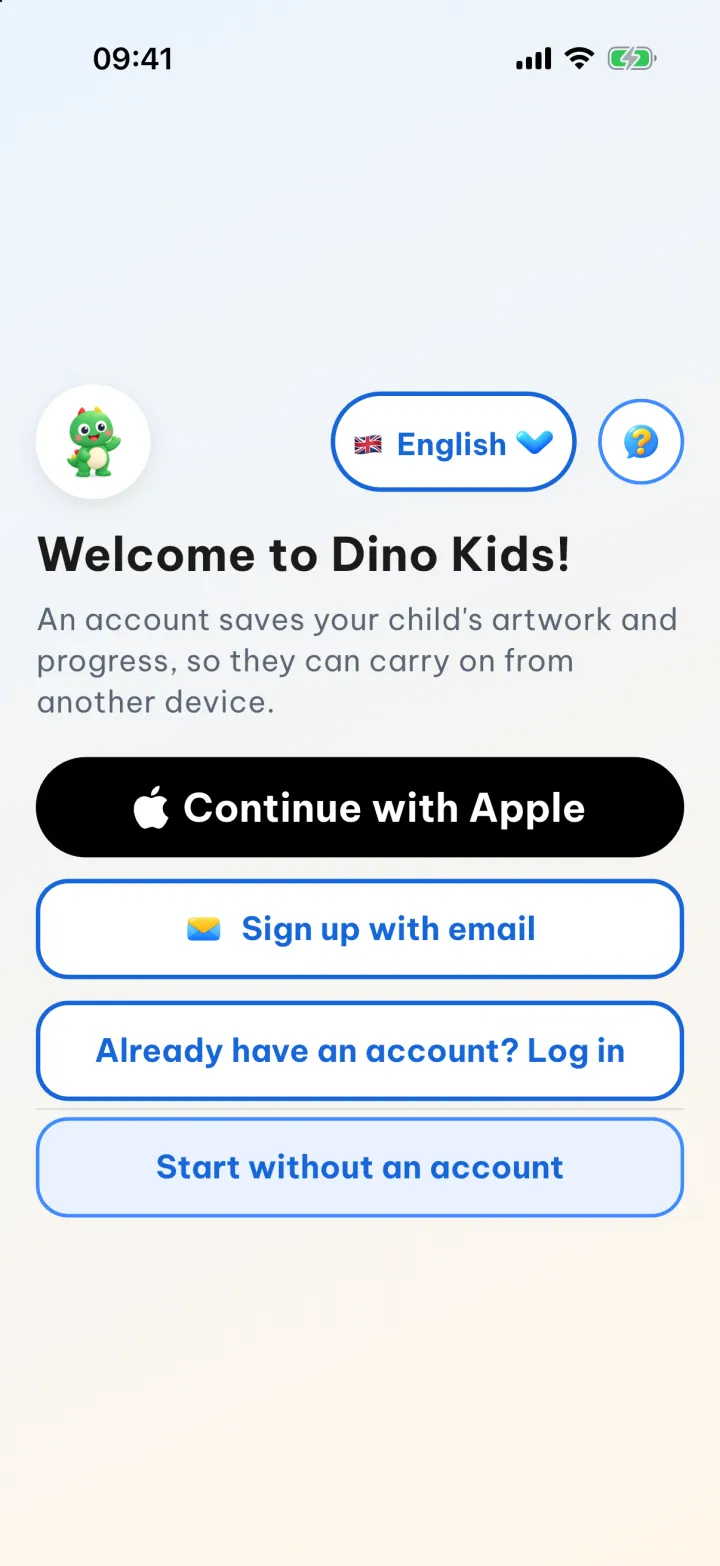
The app opens the welcome screen. On iPhone and iPad there is Continue with Apple; on Android phones and tablets there is Continue with Google. Both also offer Sign up with email, Already have an account? Log in and Start without an account. The round  button next to the language button at the top opens the How-to guides, after a quick sum for grown-ups.
3. Sign up with email
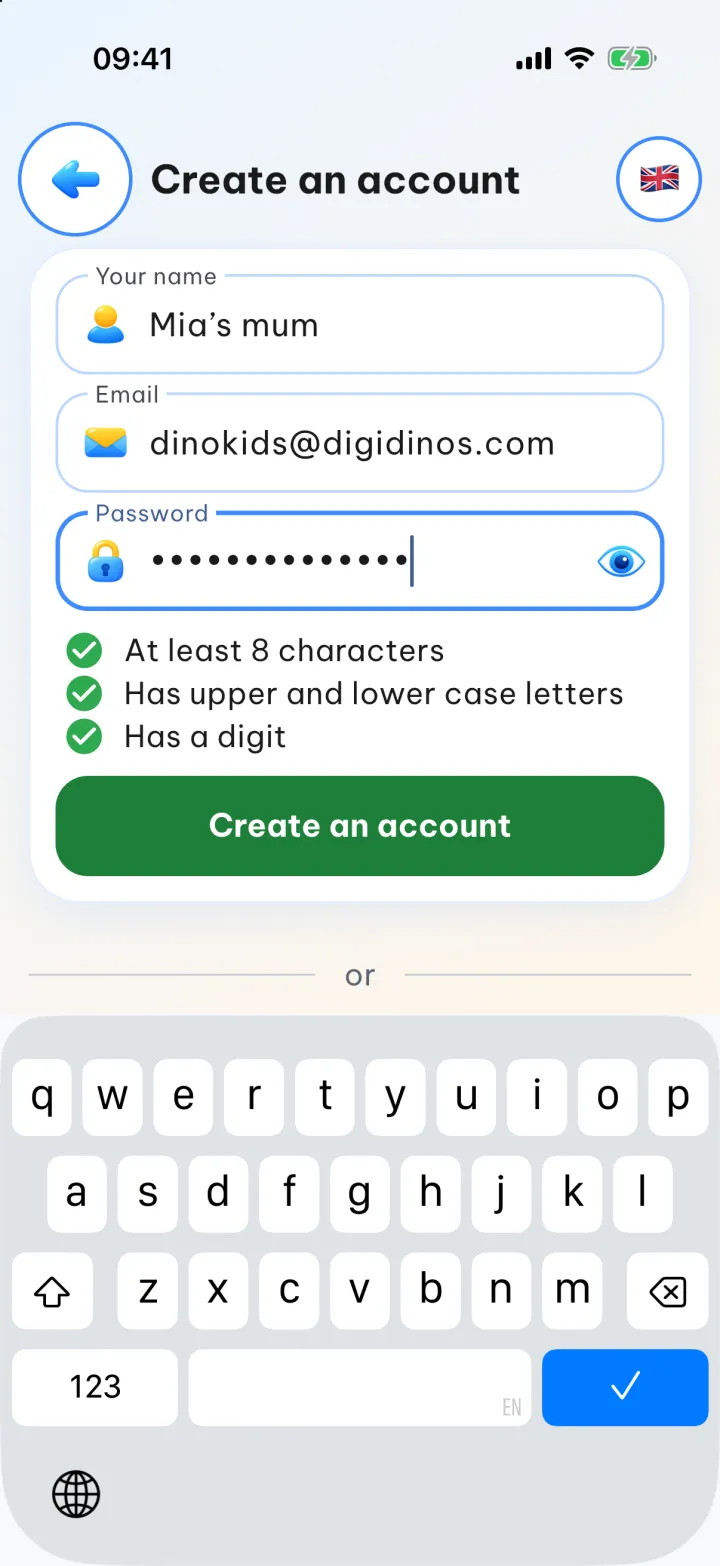
Fill in Your name, Email and Password. The password needs at least 8 characters, with upper and lower case letters and a digit; each check below the field gets a green tick once it is met. When you tap the password field, your iPhone or iPad may offer a strong password, which you can use or not. Once all three checks are ticked, the Create an account button lights up: tap it.
4. Verify your email
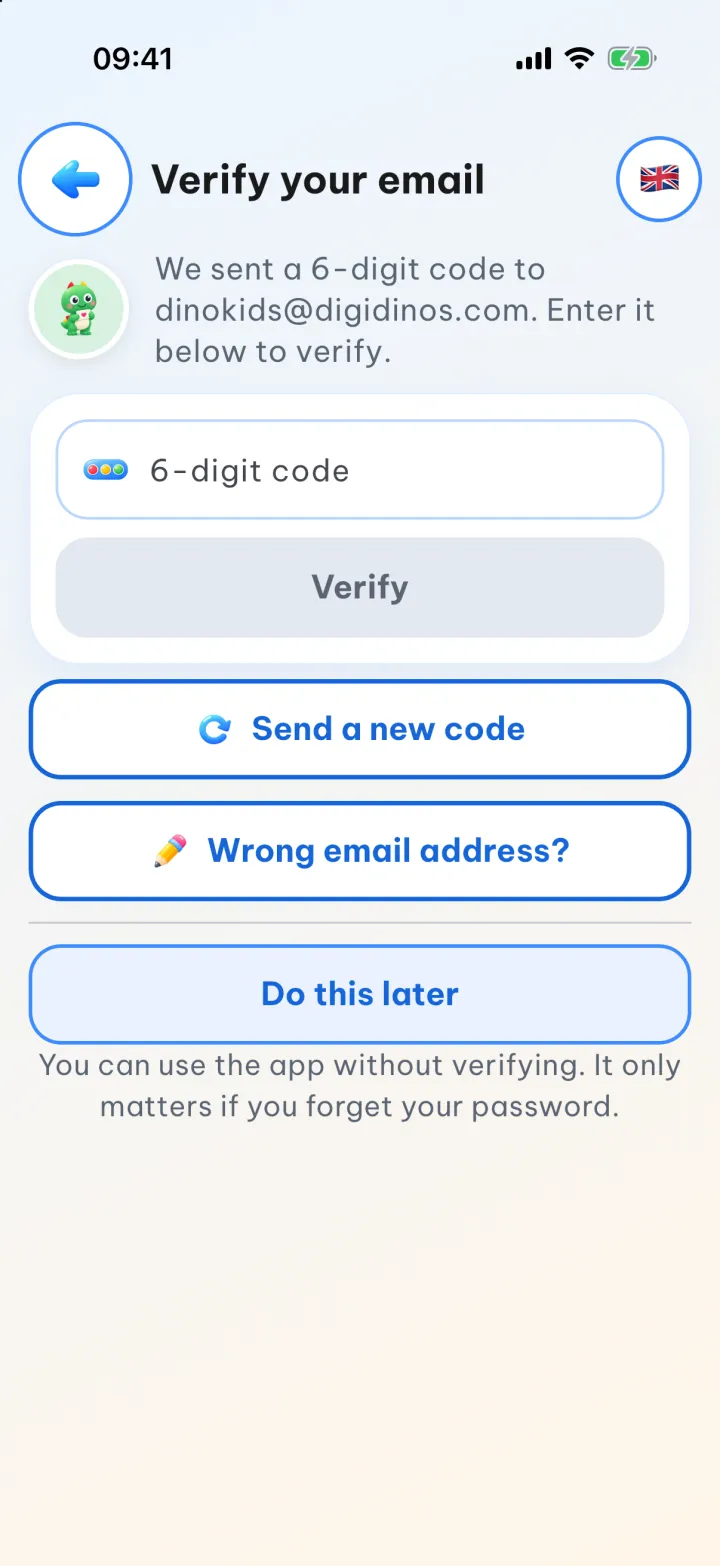
The app sends a 6-digit code to your email address. Type it into the box on the Verify your email screen: as soon as the sixth digit is in, the app verifies it by itself and shows Your email is verified. Thank you! with a Done! button below: tap it. If the email doesn't arrive, check your spam folder too, or tap Send a new code. You can also choose Do this later: the app works normally without verifying, and a verified email only matters if you forget your password.
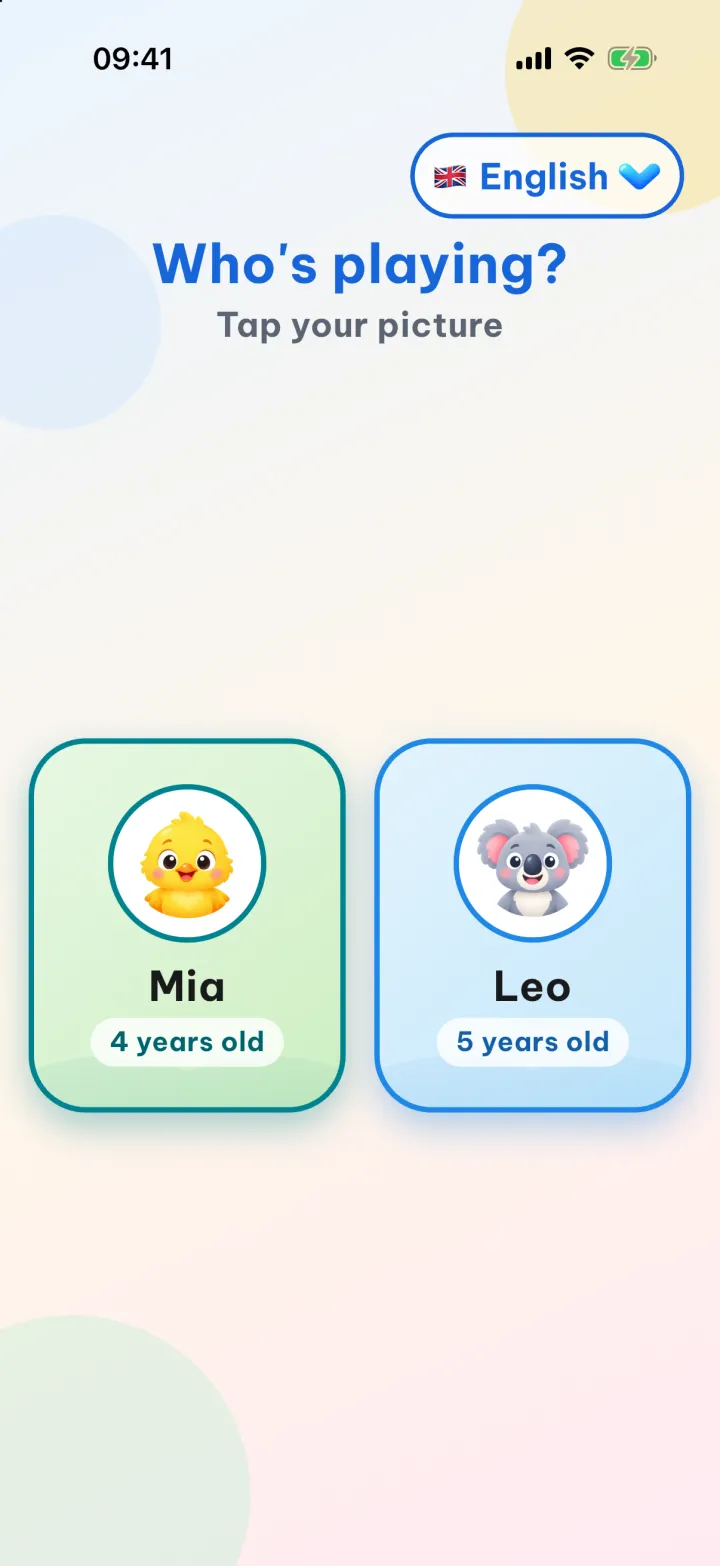
Any children you created while using the app without an account move into the new account, along with everything they have done: after Done!, the Who's playing? screen still shows all of them.
How syncing works
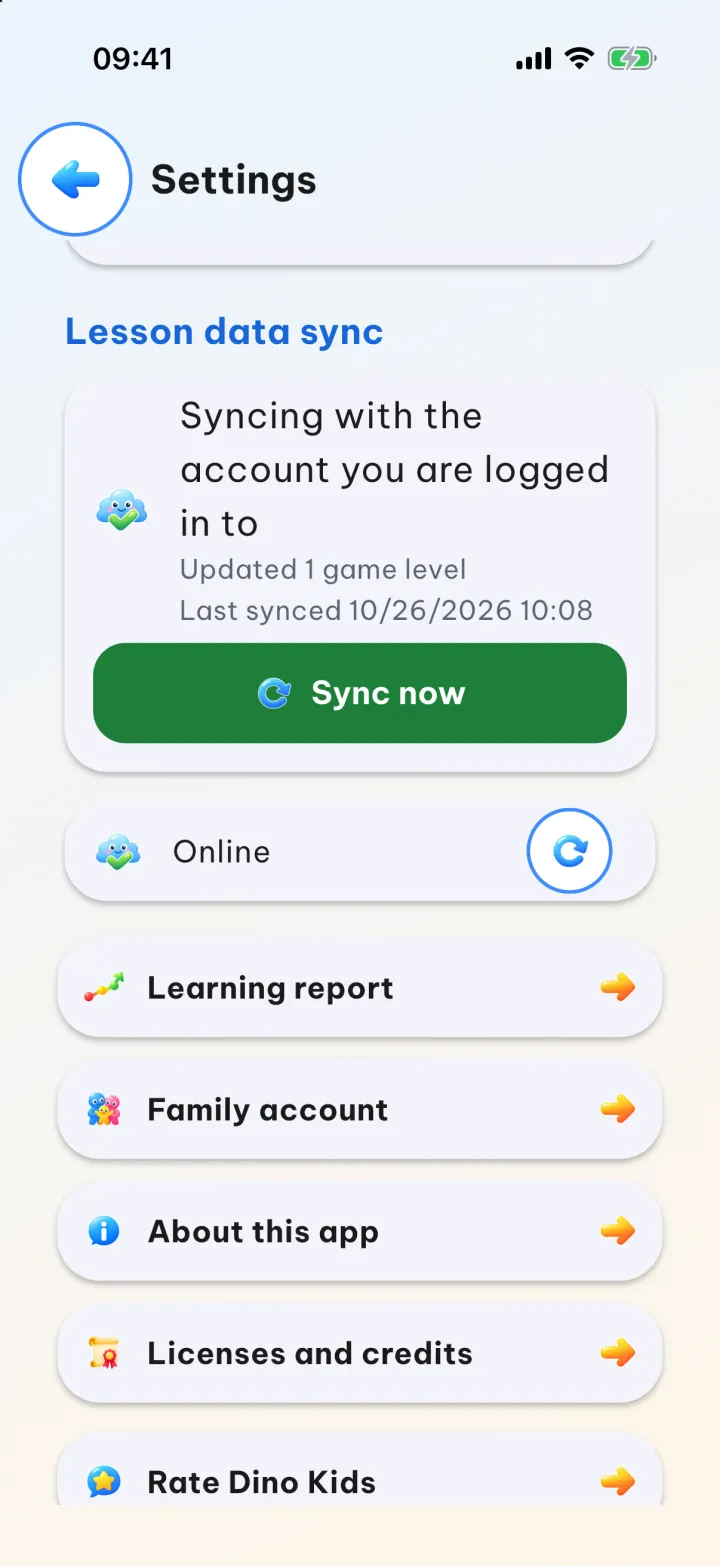
When there is a connection, the app syncs by itself when it opens, when you come back to it, and every 30 minutes. To sync straight away, go to Settings, find the Lesson data sync section and tap Sync now.
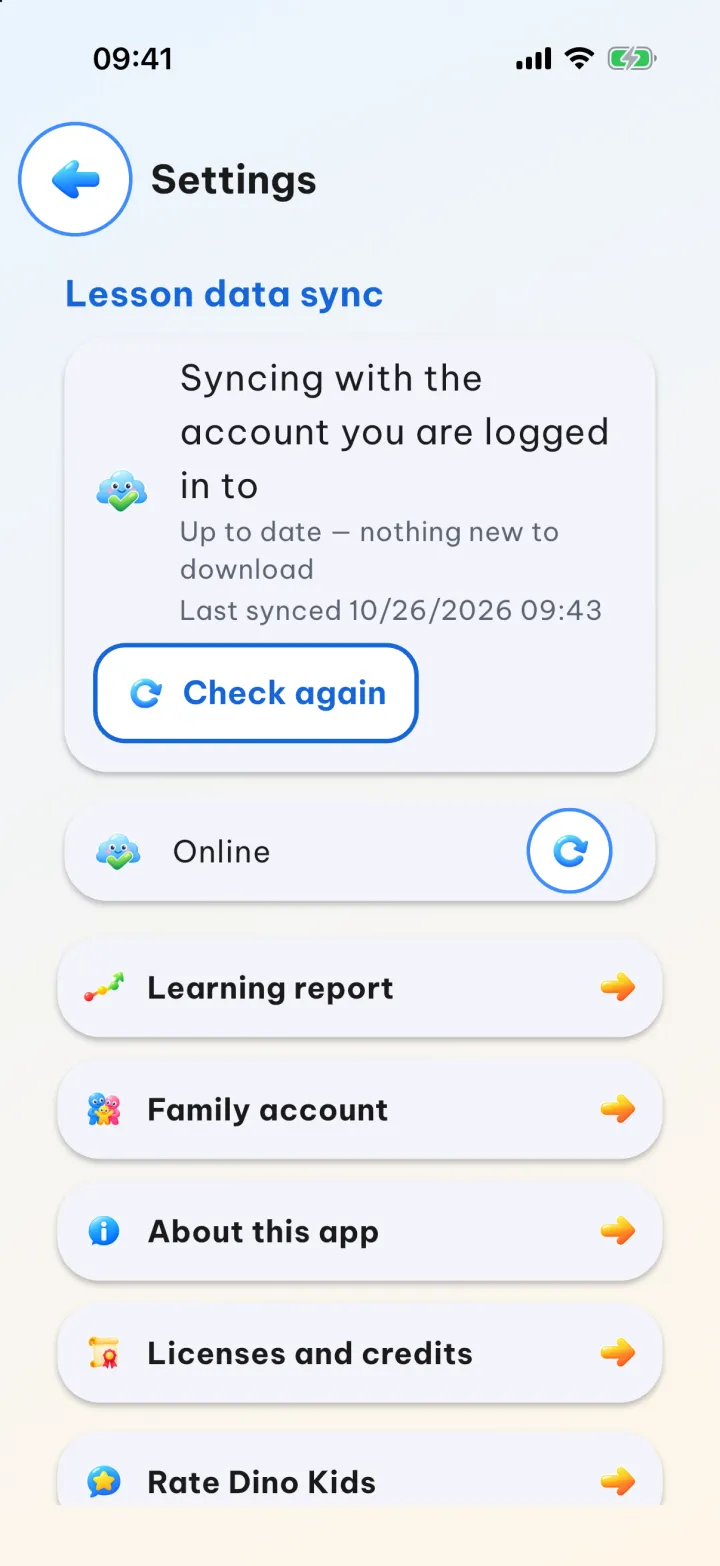
When everything is already up to date, an outlined Check again button takes the place of Sync now; tapping it runs another round.
What goes with your account:
- your child's profile: name, age, languages to learn and daily goal;
- stars, reports, the pictures your child has coloured and the colours they have mixed;
- progress in handwriting, JLPT, connect the dots, mazes, join the numbers, flip cards and music;
- your voice recordings for lessons and your story recordings.
What stays on the device only, without syncing:
- real photos of your child (other devices show the animal instead);
- pictures you add yourself and songs imported from MusicXML files;
- your child's own voice recordings;
- play tickets, stickers and the Dino in Playtime;
- the Unlock every lesson switch;
- device settings: language, play ticket rules and the Use family voice switch.
Adding a second device
On the other device, install Dino Kids, tap Already have an account? Log in on the welcome screen and log in to the same account. Once you are in, the app goes straight to the profile screen with all the children in your family, with no need to create them again.
One thing to watch: if on the new device you tap Start without an account, create a child, and only then sign in to an account that already has that child, the child you created while trying the app becomes a duplicate profile. If you already have an account, sign in on the new device right from the start. And if you have been trying the app without one and now want an account, create a new account.
Signing out and deleting your account
Tap Log out in Family account and the app gives you two choices. Sign out keeps your child's data on the device, so it is all there when you sign back in. Sign out and erase data on this device is for when you are about to pass the device on to another family.
To delete your account for good, choose Delete account in Family account, or follow the steps on our account deletion page. Deleting your account removes everything for your family from our server and from this device, and it cannot be recovered.
Good to know
- Syncing needs a connection. Offline, your child keeps learning as usual, and what they do is sent at the next sync.
- One account covers the whole family: all the children sit together in Your children.