 Dino Kids
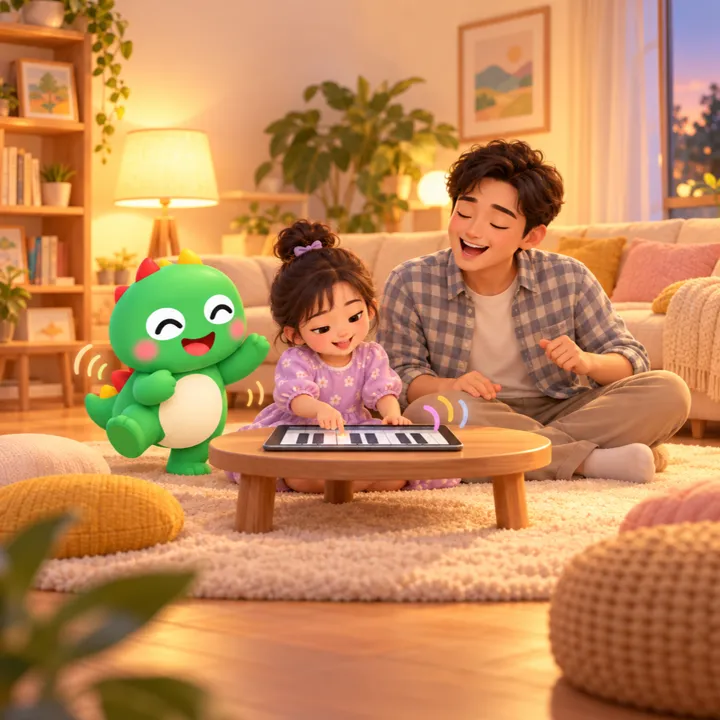
The Songs shelf in the Music subject already has songs for your child to practise on the piano. But sometimes your child wants to play the very song the family sings together, or one you learnt as a child yourself. If you have the music as a MusicXML file, the shared format of music notation software, you can bring that song into the app. Songs with several staves (two hands, several parts) keep them all: your child chooses one staff to play and the piano plays the rest. It is also a good excuse for a parent to sit alongside and work out the notes together.
Step by step
1. Open the Add a song screen
On the home screen tap the Music subject, choose Songs, then tap Add a song. The app asks a question meant for grown-ups before it opens.

2. Get a MusicXML file ready
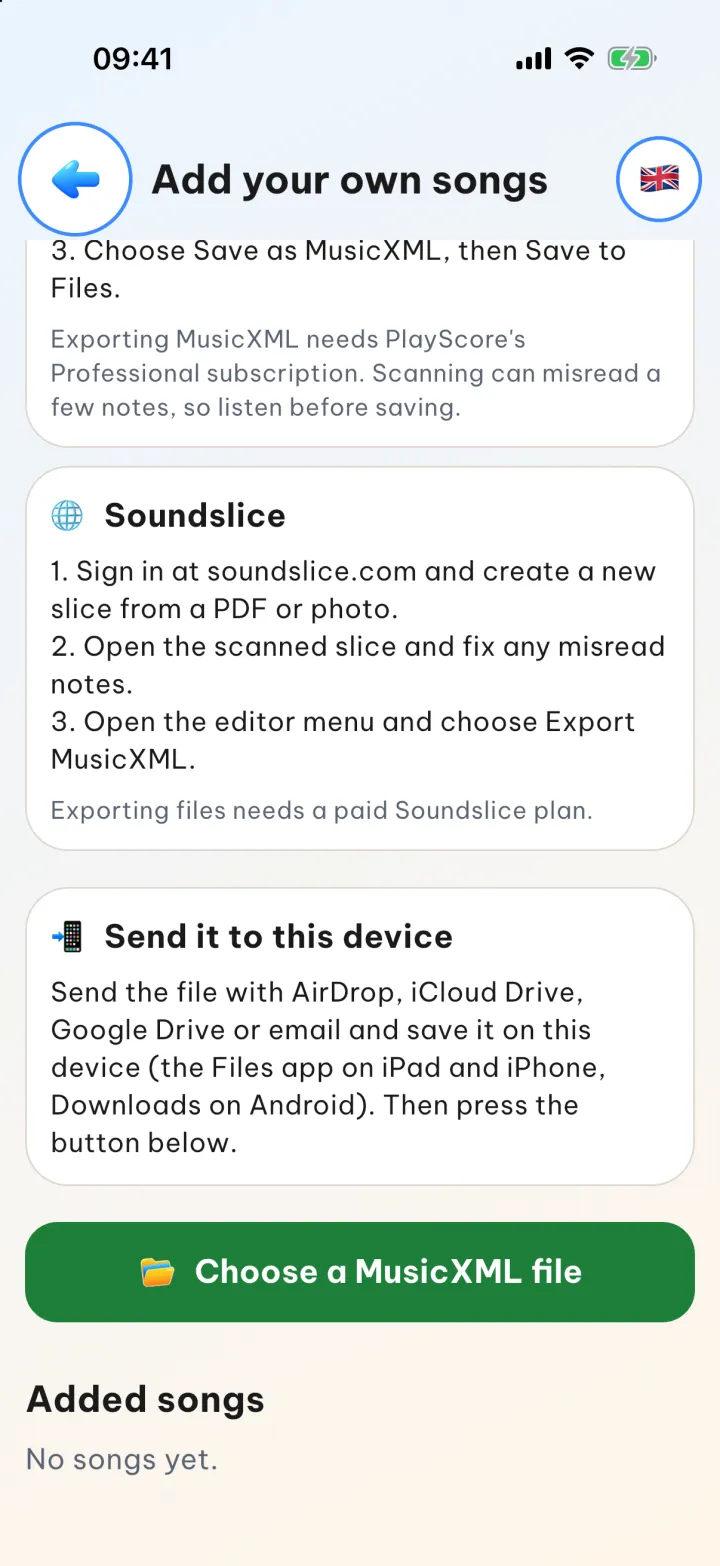
The Add your own songs screen has a section called Where to get a MusicXML file that explains three ways:
- MuseScore Studio: free, runs on a computer. Open the song, choose File → Export…, and pick MusicXML as the format. Both .mxl and .musicxml files work.
- PlayScore 2: photograph a page of sheet music or open a PDF, then export it as MusicXML. Exporting needs PlayScore's paid Professional subscription.
- Soundslice: create a song from a PDF or a photo, fix any misread notes, then export MusicXML. Exporting needs a paid Soundslice plan.
Scanning can misread a few notes, so with the last two, listen before you save.
Then, as the Send it to this device section explains: send the file with AirDrop, iCloud Drive, Google Drive or email and save it on the device, in the Files app on iPad and iPhone, or in Downloads on Android.
3. Choose the file and preview it
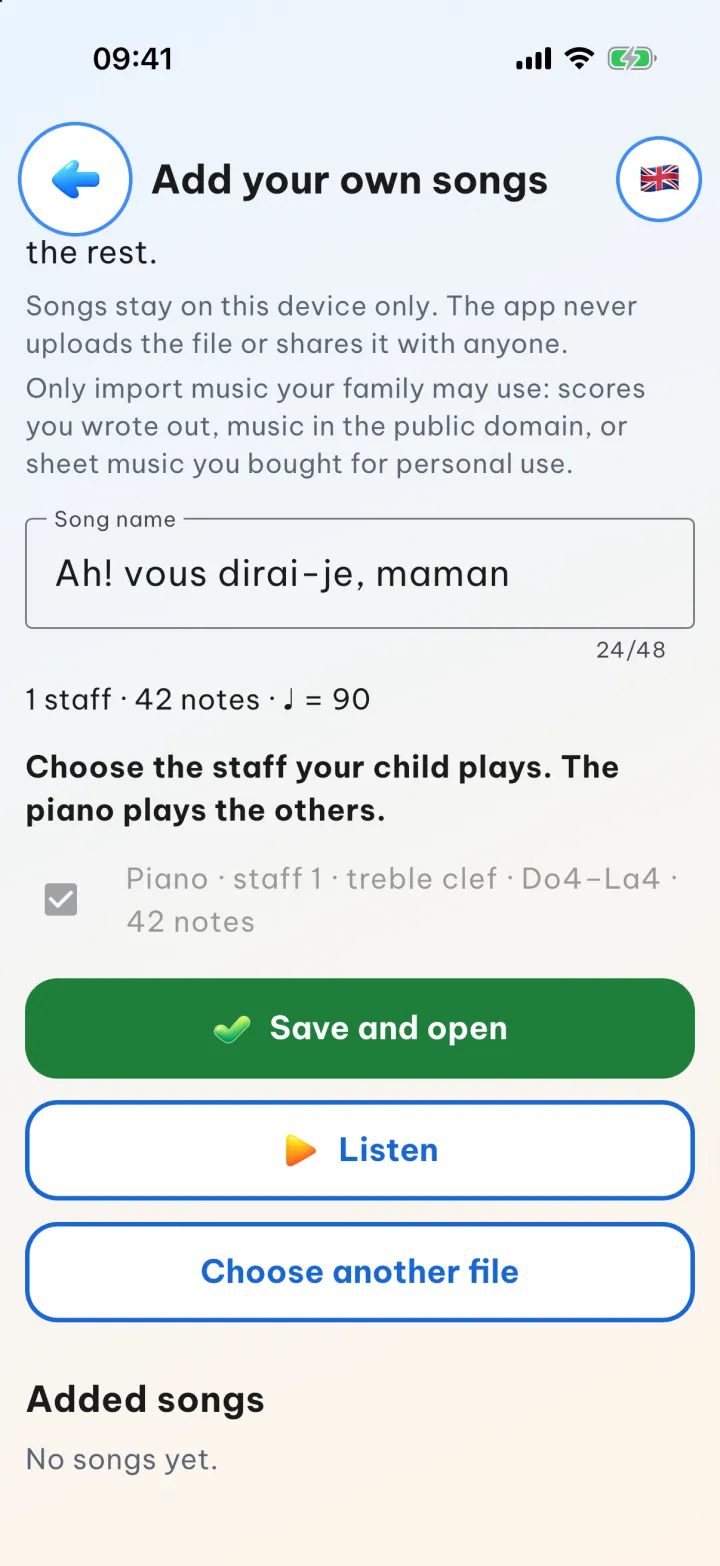
Tap Choose a MusicXML file and pick the file you saved. The app reads the score and shows a preview: the Song name (which you can edit), the number of staves, the number of notes and the tempo. Under Choose the staff your child plays, pick the staff your child will play; the piano plays the others. Tap Listen to hear it first. Picked the wrong file? Tap Choose another file.
4. Save and open the song
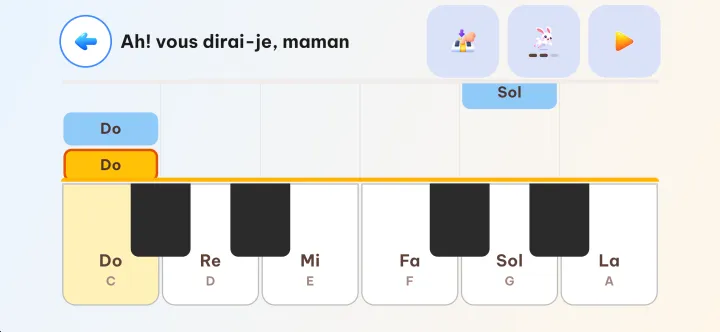
Tap Save and open. The play screen for the new song opens straight away, turns sideways and plays the song through once as a demo; tap ⏹ to stop it. Next time, the song is waiting under Our songs on the Songs shelf.
To delete a song, open the Add your own songs screen again and find it in the Added songs list.
Good to know
- The app accepts .musicxml, .xml and .mxl files, up to 8 MB per file and 8,000 notes per song. Song names can be up to 48 characters.
- Notes outside the range of the app's piano are moved by an octave to fit, and the app tells you how many were moved.
- If a song has D.C., D.S. or a Coda, the app plays it straight through once without repeating back.
- The app doesn't ask for any permissions to import songs.
- Songs are saved only on the device you imported them on: the app doesn't send the file anywhere, doesn't share it with anyone and doesn't sync it to other devices. A song added on an iPad won't appear on your iPhone by itself.
- Only import music your family is allowed to use: scores you wrote out yourself, music in the public domain, or sheet music you bought for personal use. Dino Kids has no shared song library between families.
This is the last article in the series for now. You can go back to the first article, on child profiles, at any time. If a step isn't clear, or you would like the series to cover something else, please write to us at dinokids@digidinos.com.