 Dino Kids
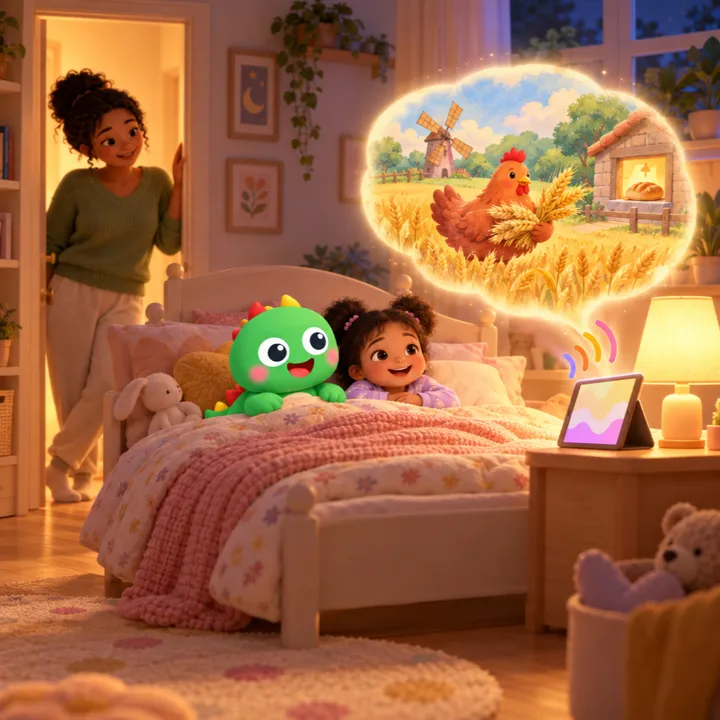
A folk tale always feels closer when someone from the family is telling it. Your voice for stories lets you read a story in the app aloud, one sentence at a time. Once the whole story is recorded, your child hears your voice instead of the built-in one whenever they open it, and can listen as many times as they like. You can even record with your child sitting beside you, just like a real story time. And when the grandparents come to stay, or the family goes back home for a visit, asking them to record a story is a way for your child to hear their voices on the days when they are far away.
Step by step
1. Open the story recording screen
On the home screen tap  , then solve the sum meant for grown-ups to open Settings. In the Voice section, choose Story voice. This opens Your voice for stories.
2. Choose a shelf and a story
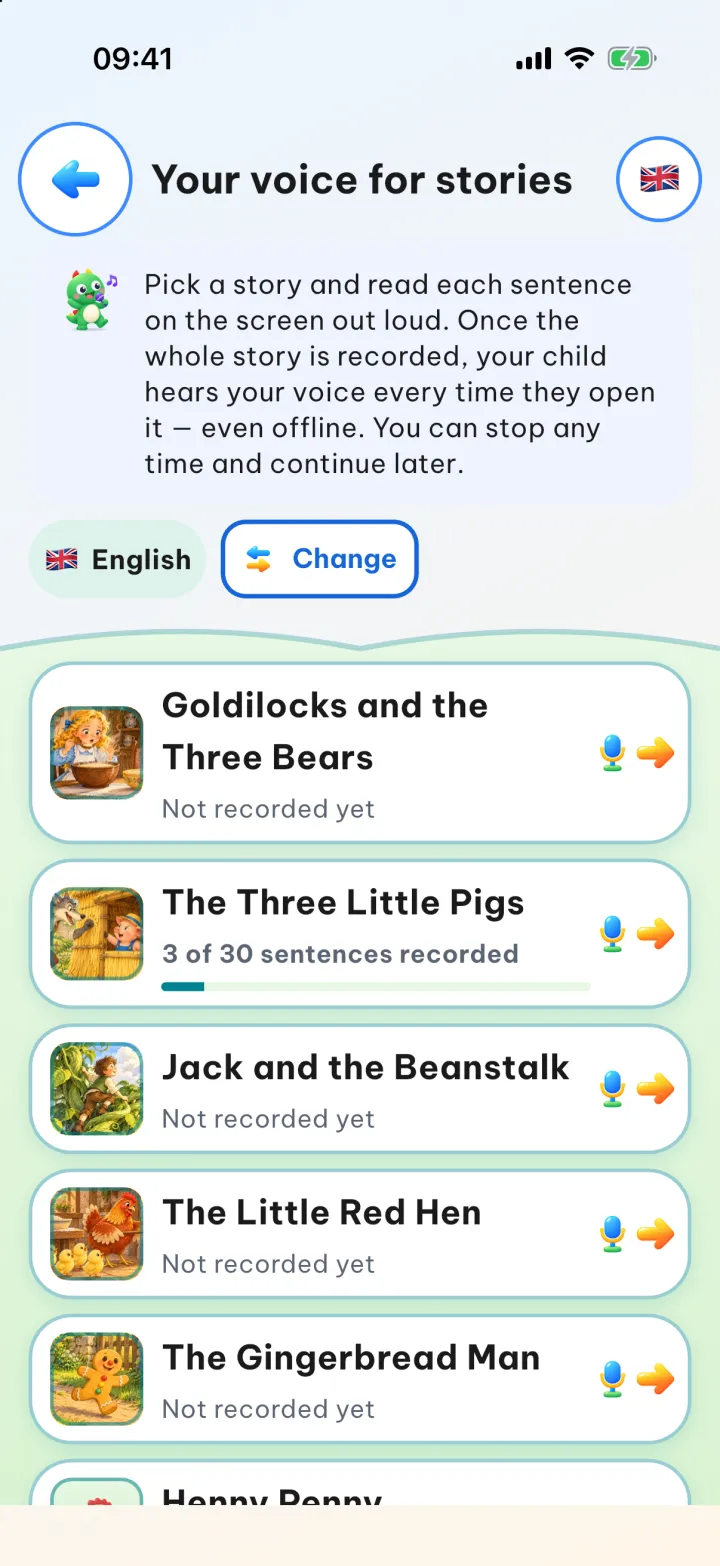
At the top is the shelf that is open, with its flag and name. It starts on the app's language (or on the story's own shelf when you come from the  button). To record a story from another shelf, tap Change and pick one of the five: Vietnamese, Japanese, English, Korean or Chinese. Each story shows where it stands: Not recorded yet, how many sentences are done (such as "3 of 30 sentences recorded"), or Whole story recorded. Choose a story to begin, or to carry on with one you have started.
3. Read one sentence at a time
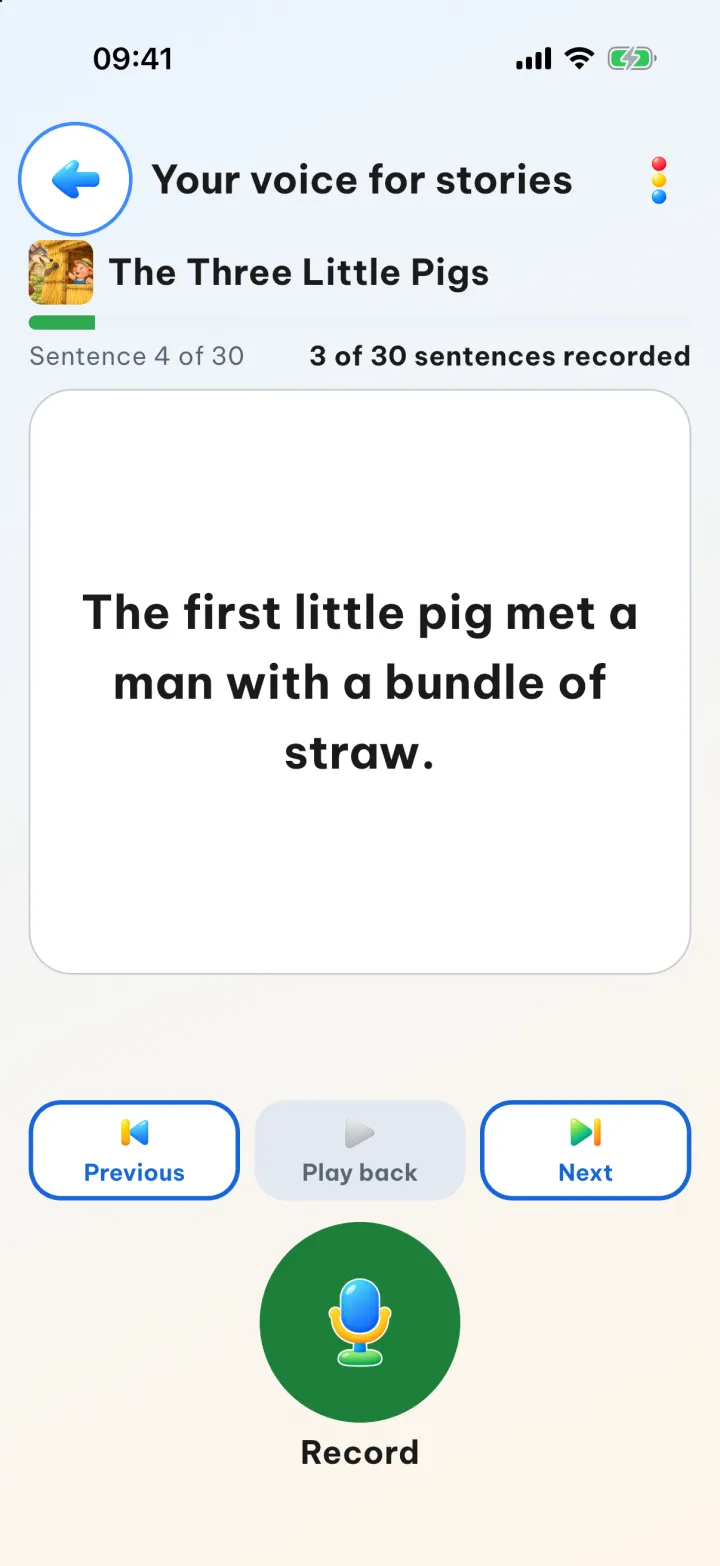
The sentence to read appears on the screen, with a line such as "Sentence 4 of 30" telling you where you are. Tap the round Record button and read, then tap it again to stop. Read slowly and clearly, as if you were telling the story to your child. If the sentence came through loud enough, the app says it is saved and moves on to the next sentence you haven't recorded. To hear the sentence you just recorded, tap Previous, then Play back; Next moves on. If you aren't happy with a sentence, record over it, or choose Delete this one.
There is no need to finish in one sitting. Wherever you stop, the next time you open the story you carry on from there.
4. Finish the whole story
Once every sentence is recorded, the app says All done! and offers a Listen to the whole story button so you can hear it all the way through. From now on, when your child opens this story, they hear your voice.
The  menu on the recording screen has two options. Turn off Play this recording for my child and the story goes back to the app's voice, while your recording is kept. Delete this recording deletes every sentence you recorded for the story, and it cannot be recovered.
Shortcuts
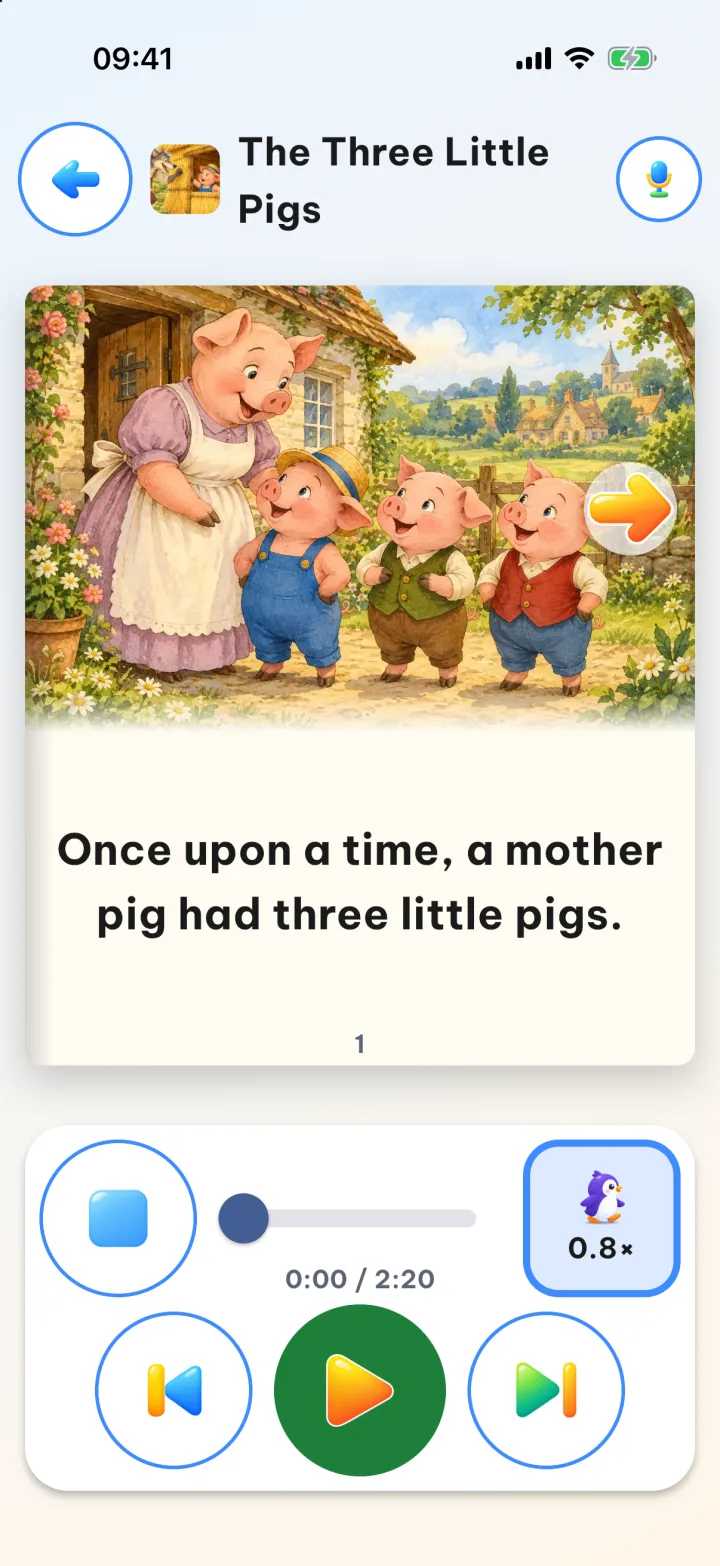
While you haven't recorded any stories yet, the home screen shows a Read stories in your own voice banner; tap it (on iPad, the Try it button) to go straight to the story shelves. The banner is only an invitation: once you have tapped it or closed it with  , or once you have recorded the first sentence of any story, it no longer appears on the home screen. The way in for the long run is the microphone button at the top of the story reader, which opens the recording screen for the story being read. Both ways ask the grown-up question first.
 button in the story reader
Good to know
- Your child only hears the family voice once every sentence of the story is recorded. Until then, they hear the story as before.
- Each sentence can be up to 30 seconds long; past that, the app stops by itself and suggests you play it back.
- A sentence that comes up several times in a story shares one recording, so you only need to read it once.
- Stories on all five shelves, Korean and Chinese included, already come with the app's narrator; once you have recorded a whole story, your child hears your voice instead.
- Listening to the family voice needs no connection. The first time you record, the device asks for permission to use the microphone.
- Without an account, your story recordings live on this device only. With an account, they sync to your family's other devices.
If you would like to read stories together away from the app, the English folk tales are also on our website, ready to open on a phone or a computer.